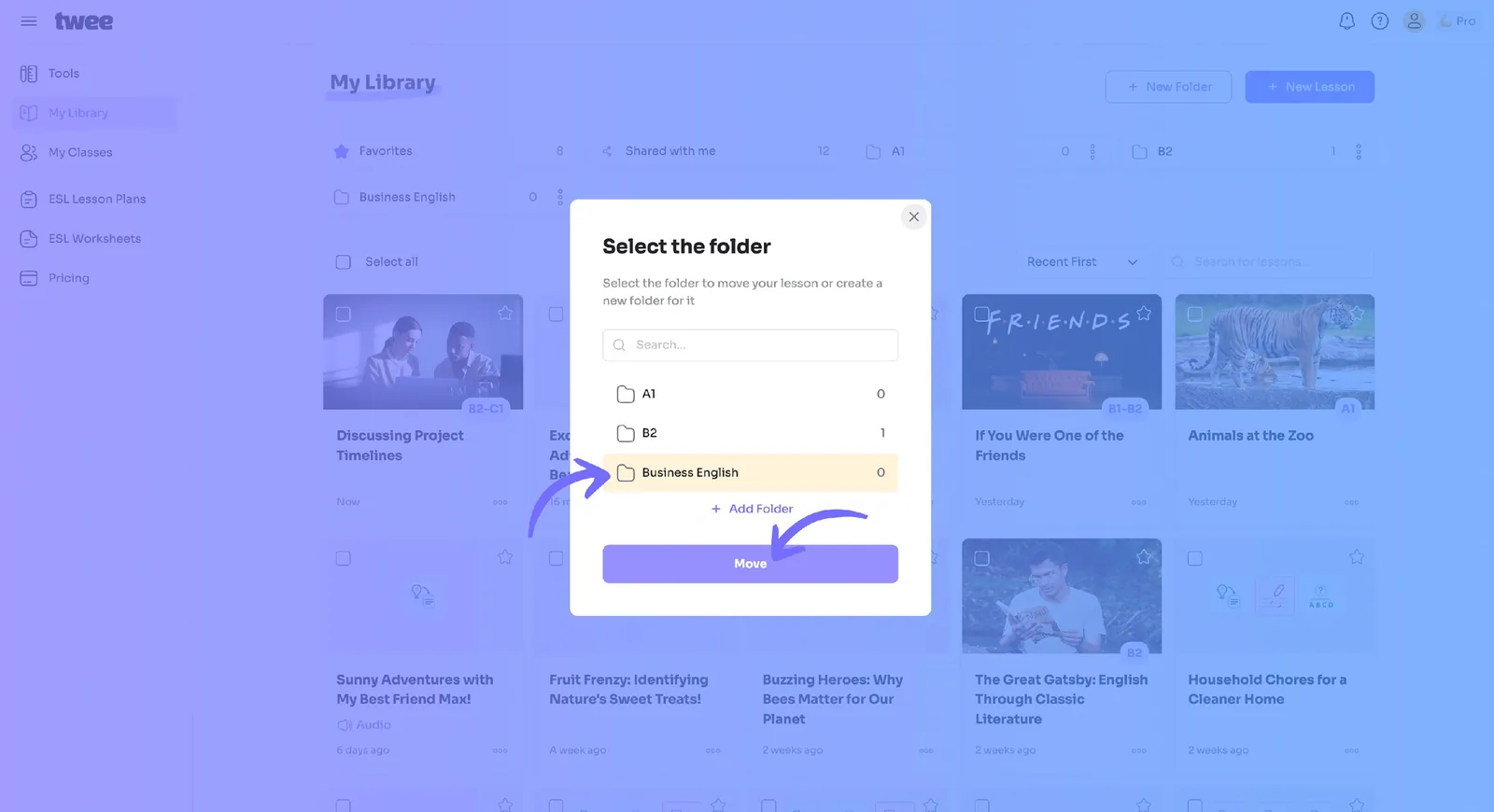
To easily find and manage your lessons, you can organize them into folders. This helps keep your materials structured and saves time when planning.
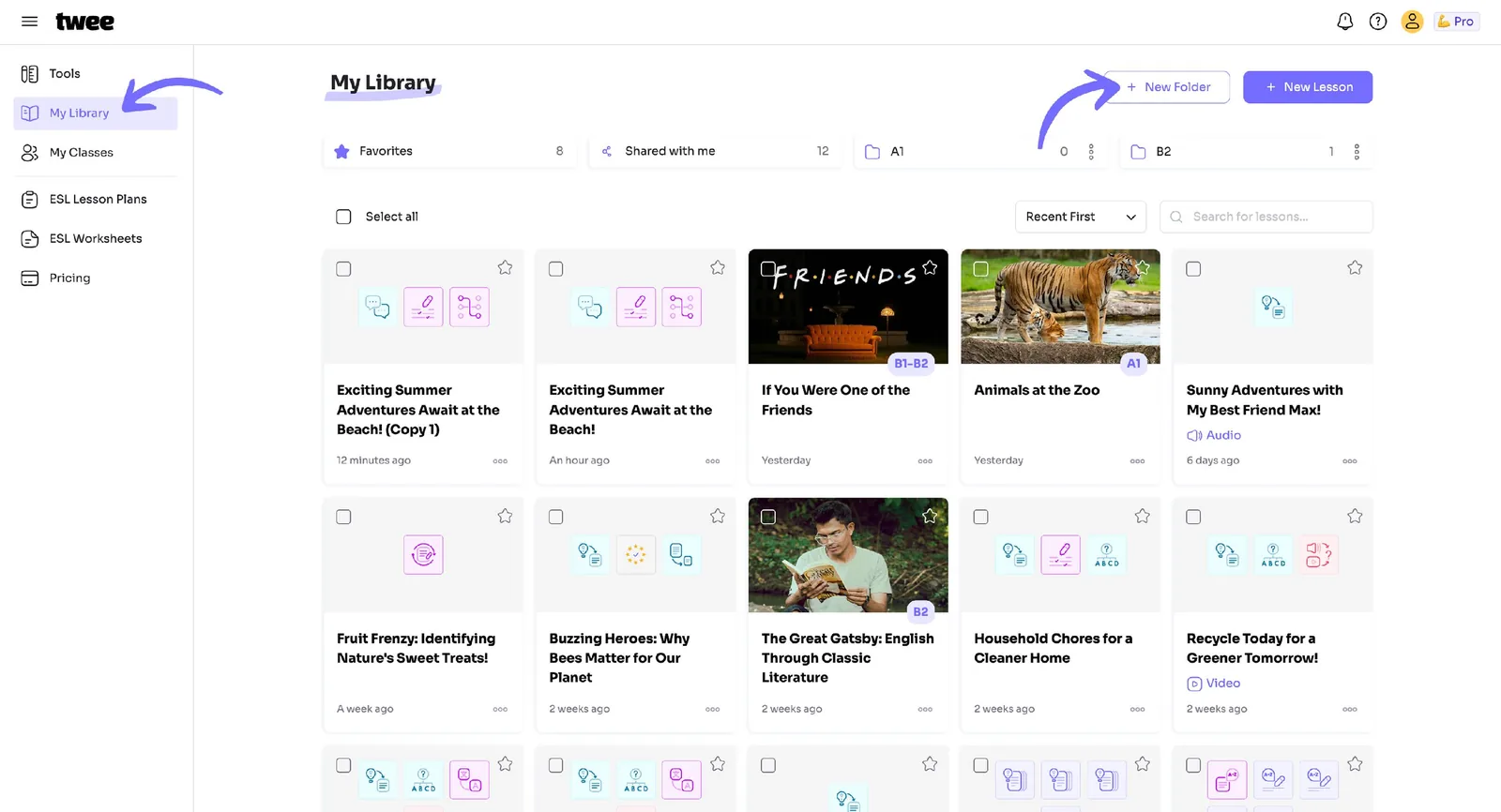
Step 1: Create a new folder
Go to My Library in the left sidebar and click New Folder at the top of the page to create a new folder.
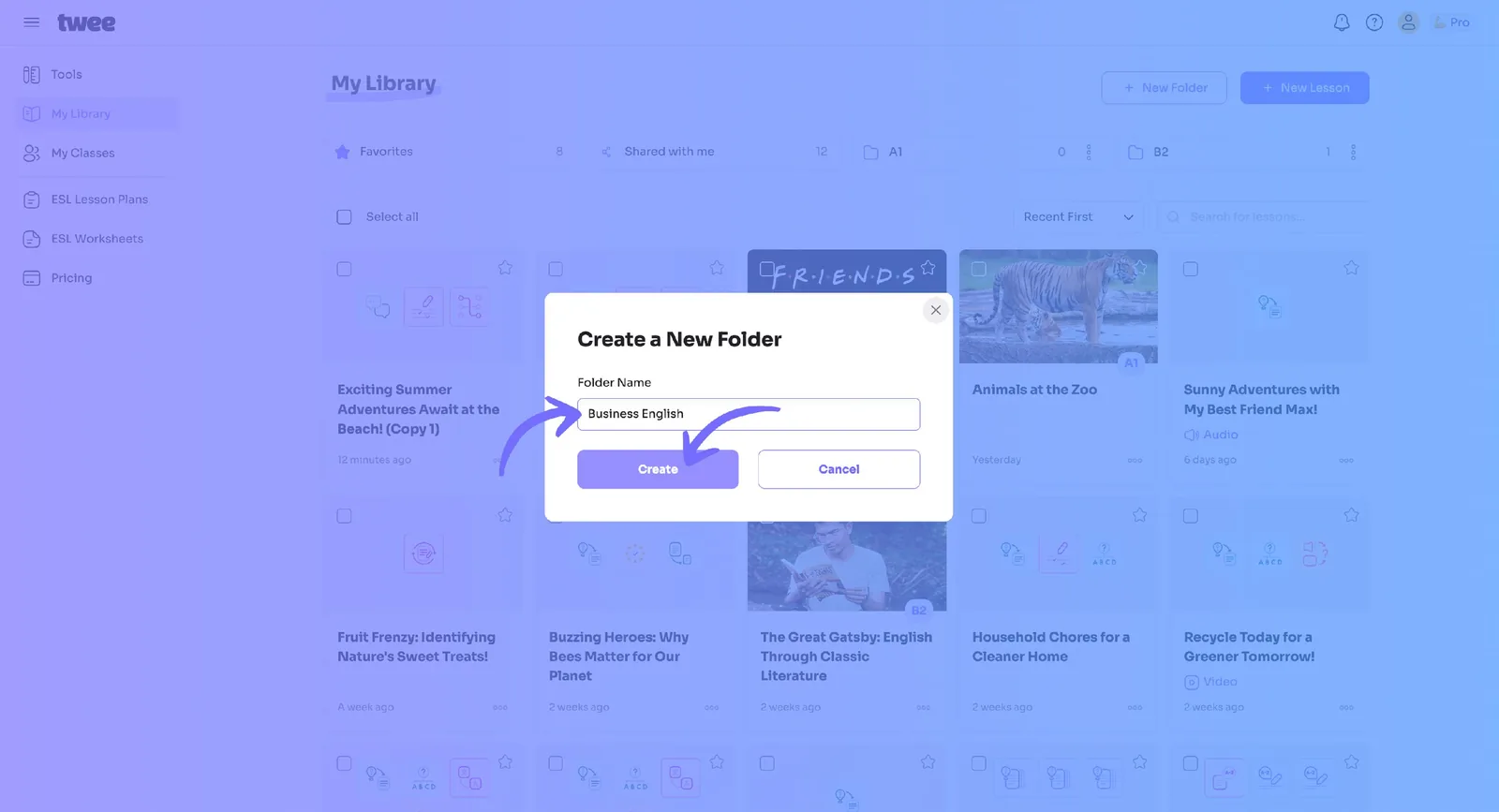
Step 2: Name the folder
Give your folder a name — it could be based on a student’s name, level, age group, or any category that suits your needs — then click Create.
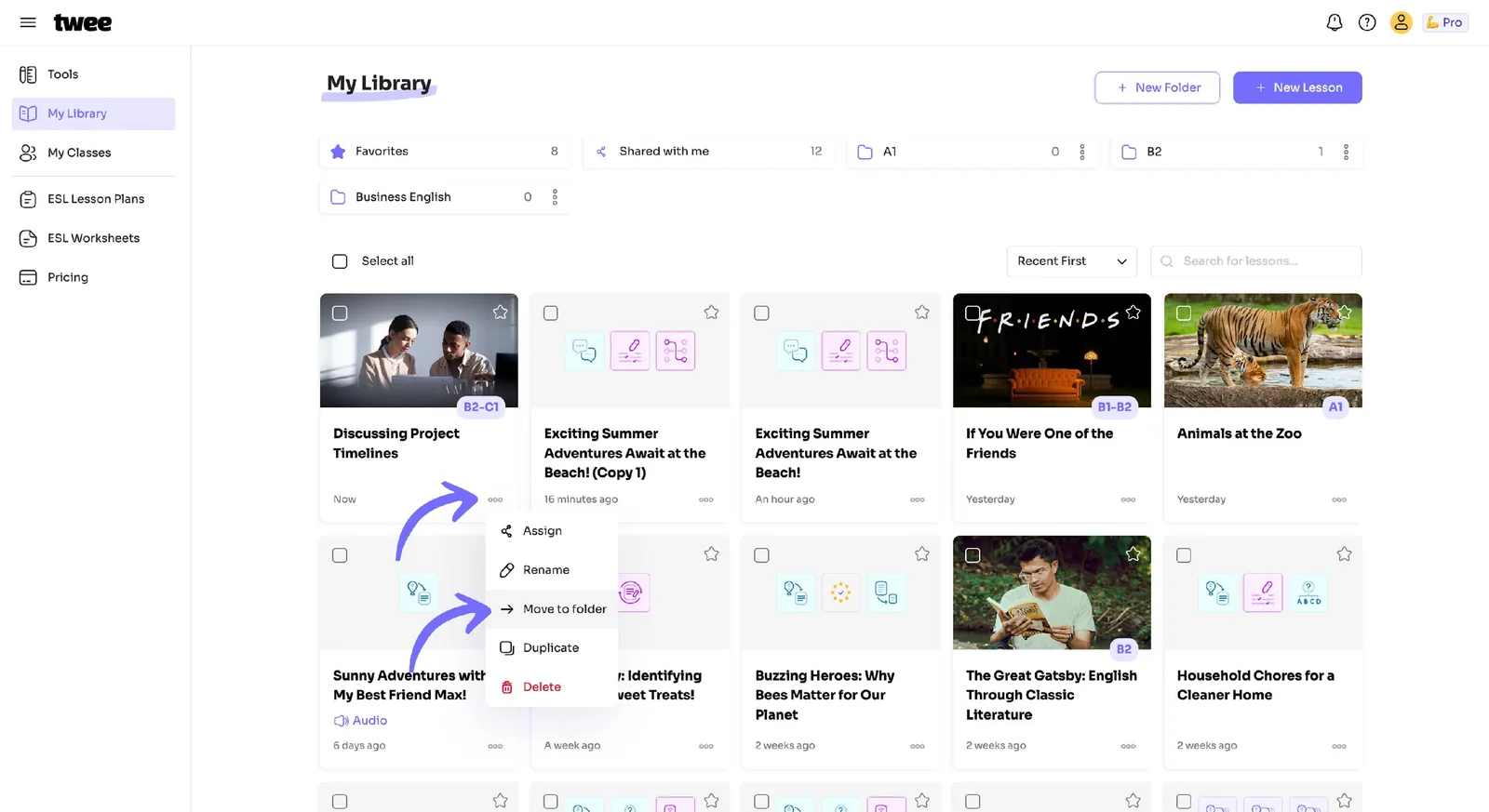
Step 3: Open the lesson menu
You’ll be taken back to the My Library page. Click the three dots next to the lesson you want to move and select Move to folder from the menu.
Step 4: Select the folder and move
Then, select the folder you need and click Move. Your lesson will be successfully placed into the selected folder.