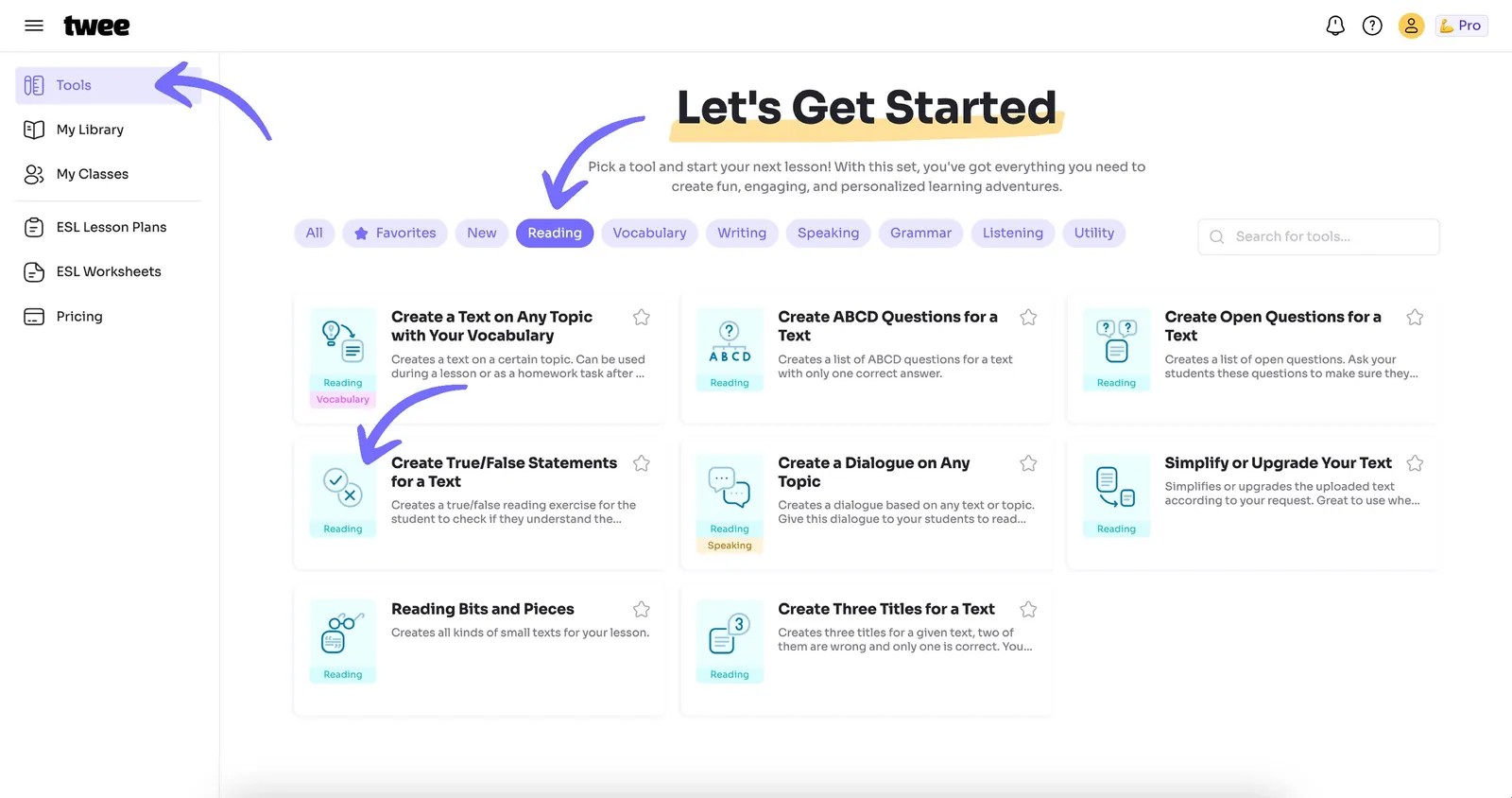
Step 1: Open a reading tool
Go to the Tools section and select one of the reading tools there.
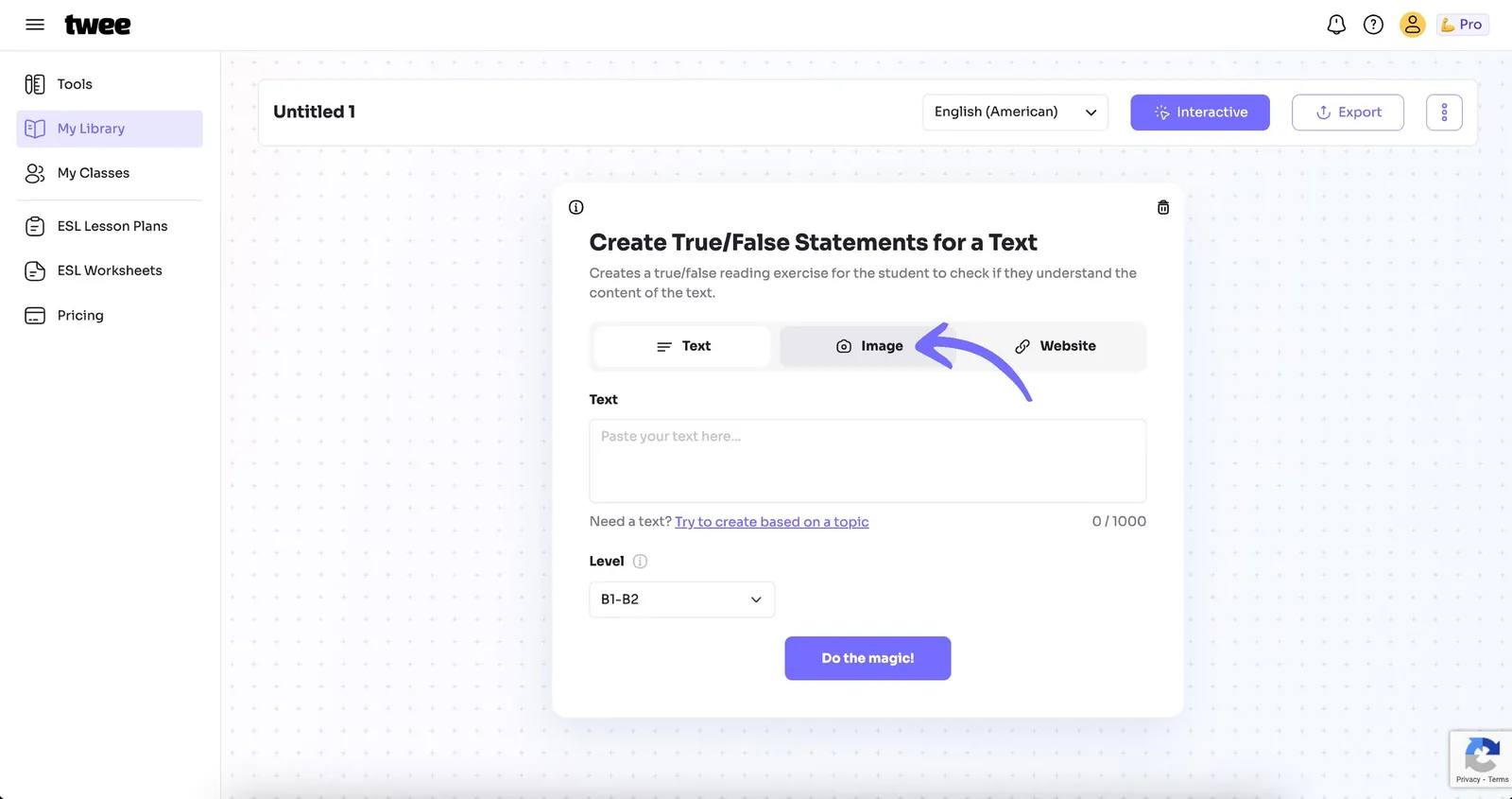
Step 2: Switch to the Image tab
Above the text field, you’ll see three tabs. Click on the middle one labeled Image.
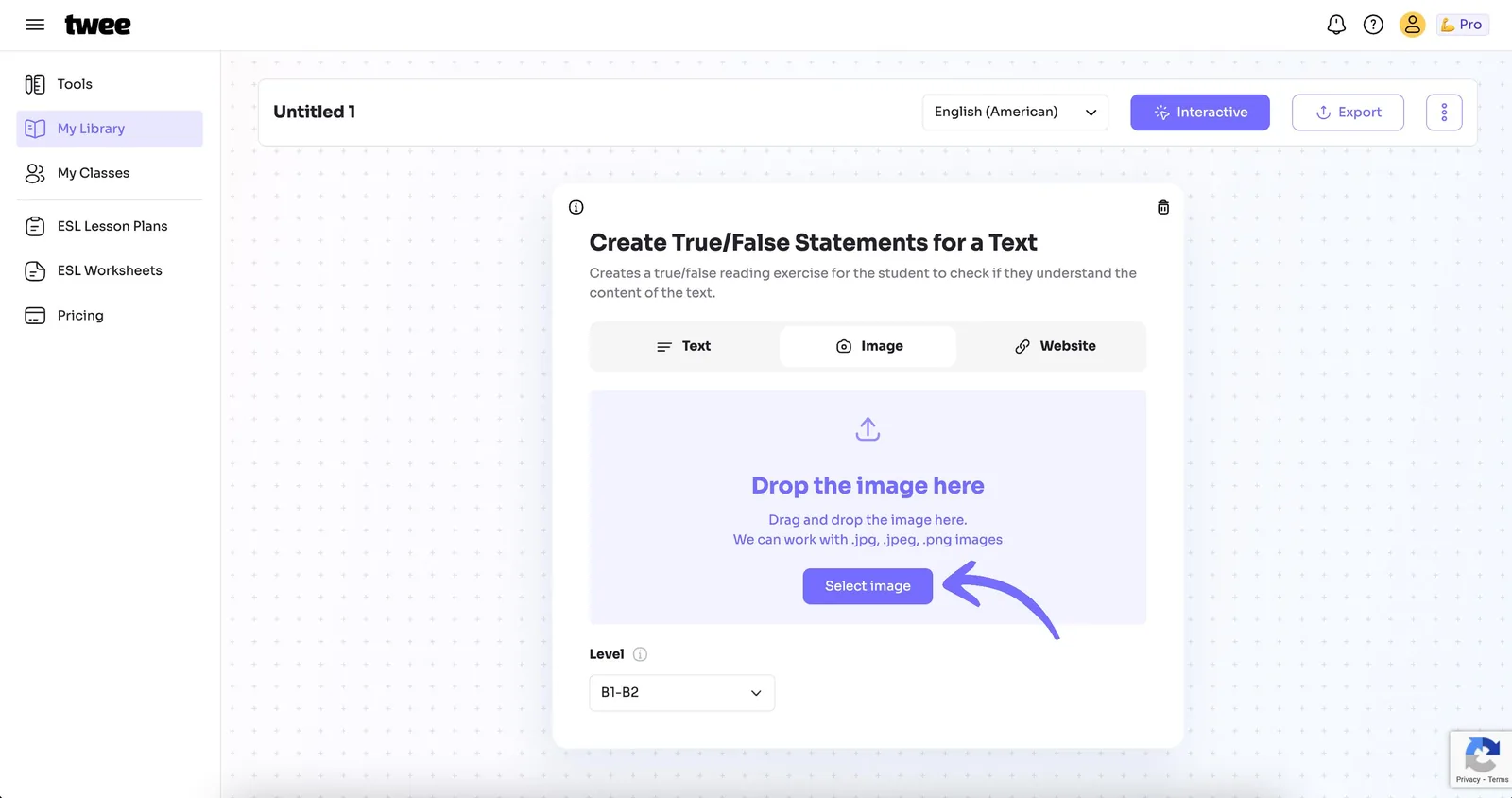
Step 3: Select your image
Click Select image (you can use a screenshot or any other image).
Supported formats: .png and .jpg
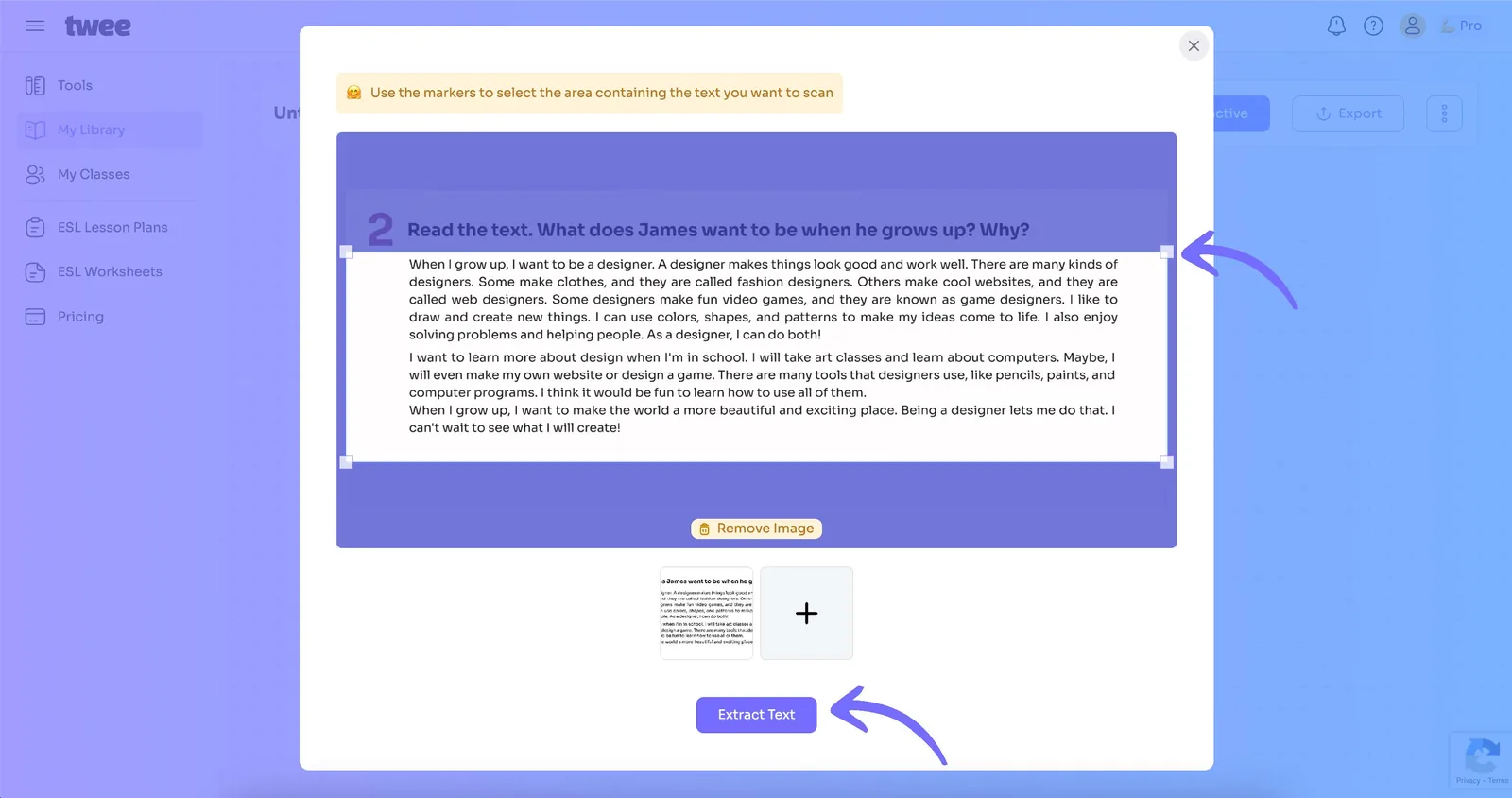
Step 4: Highlight and extract the text
Use your cursor to highlight the part of the image that contains the text you want to extract.
Once the area is selected, click on Extract text.
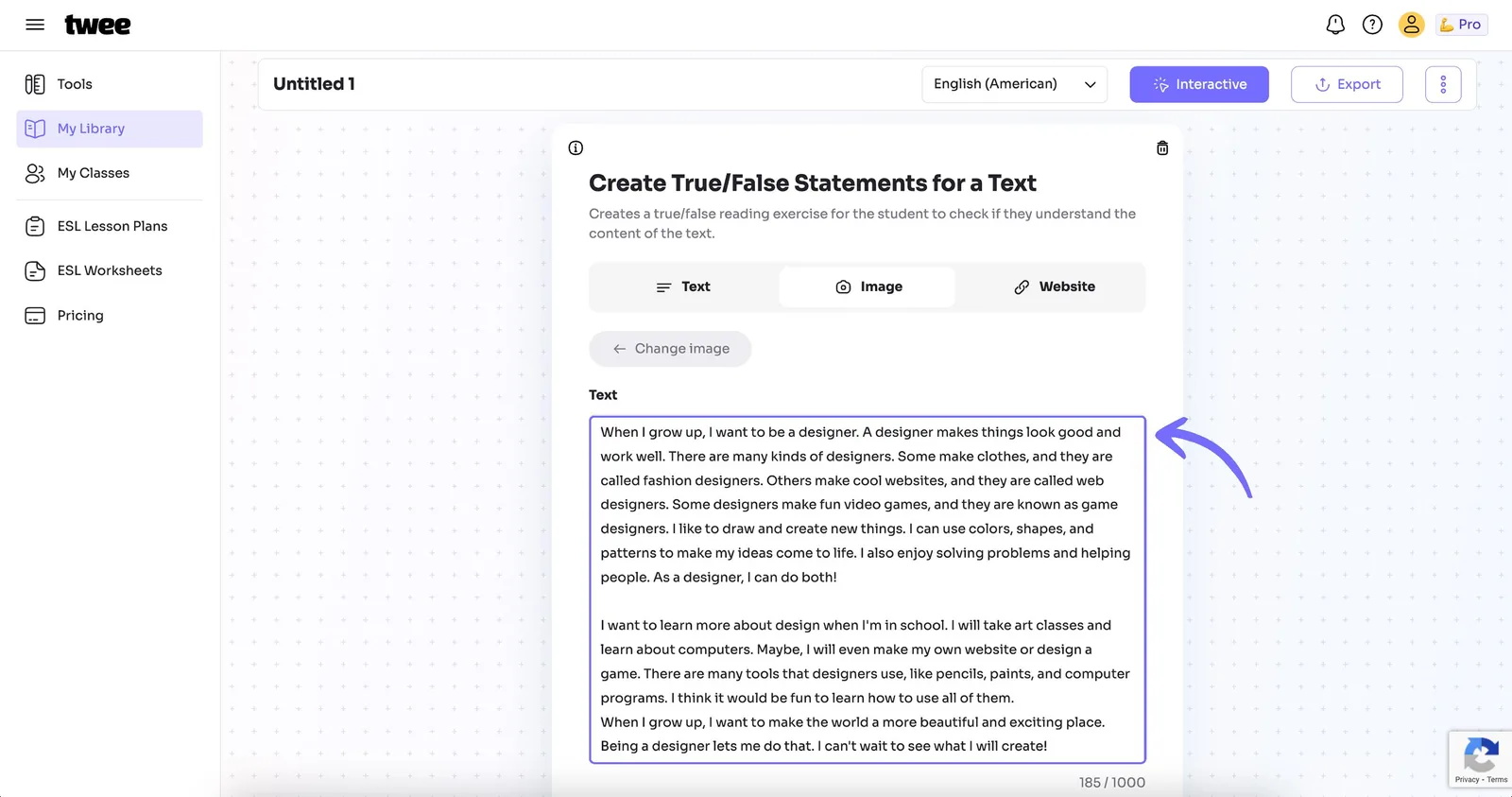
Step 5: Check the extracted text
The extracted text will now appear in the input box, ready for you to edit or use in the tool to generate your reading activity.