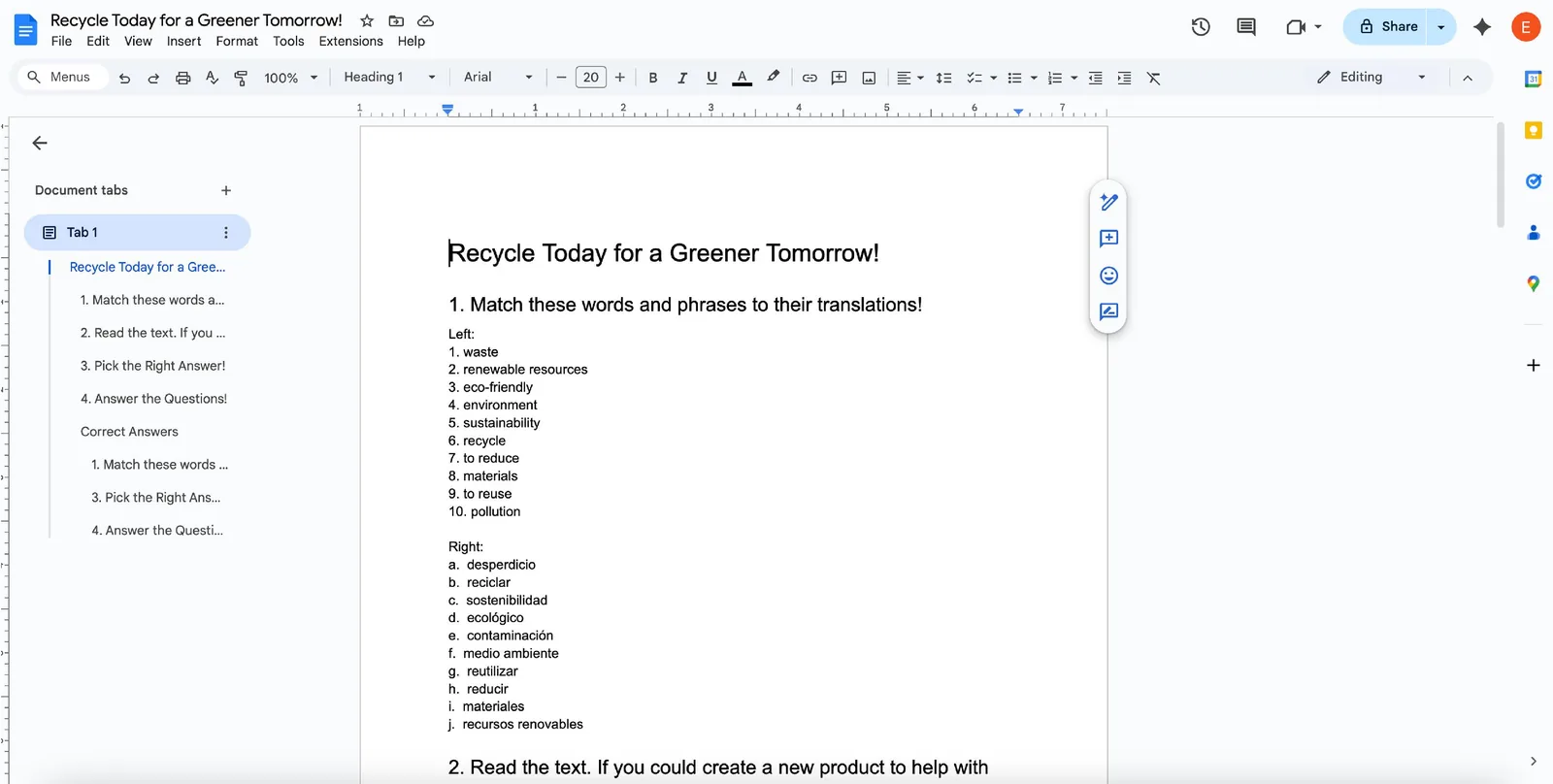
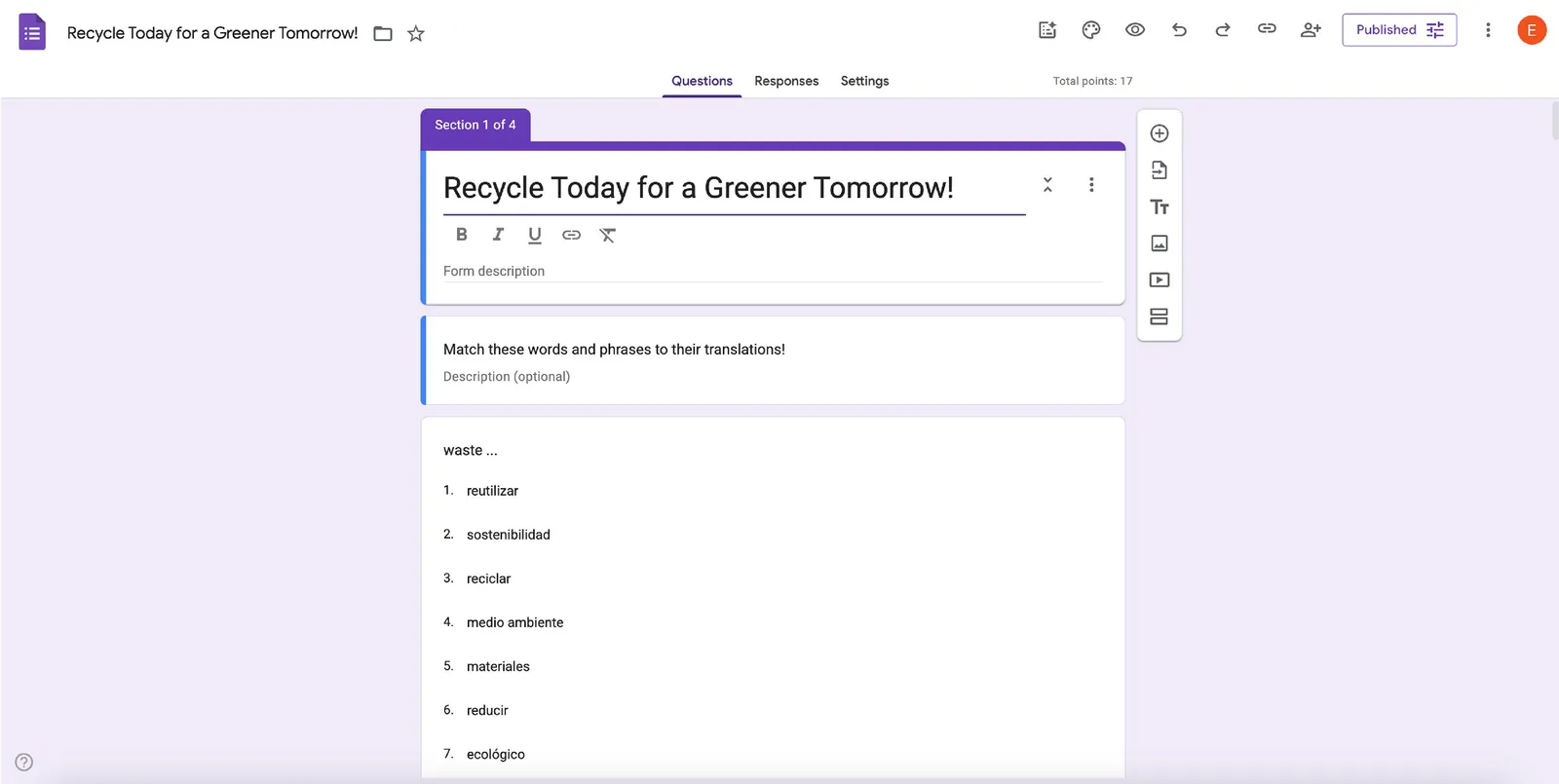
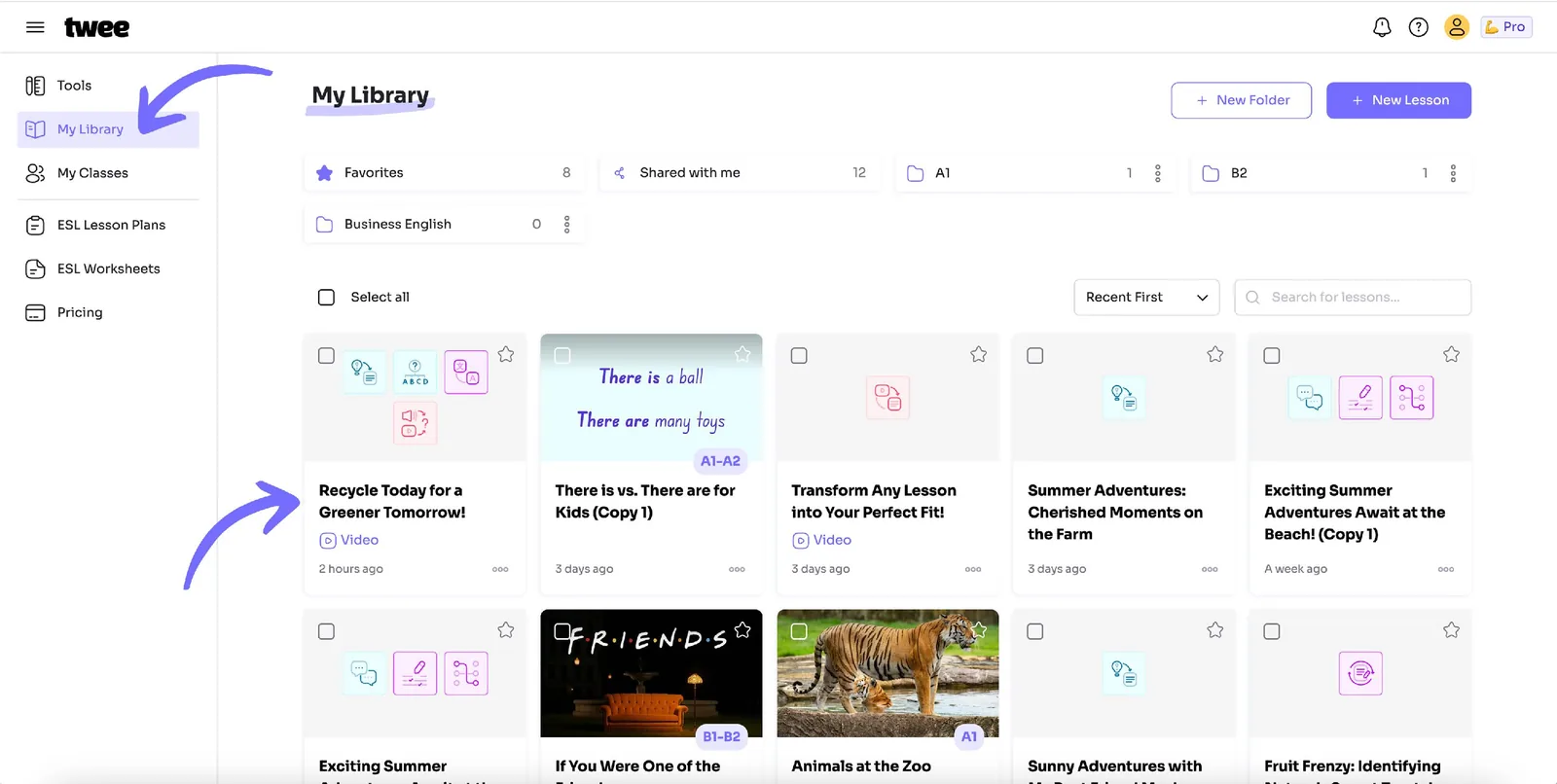
Go to My Library and open the lesson that you want to export as a Google Doc or Google Form.
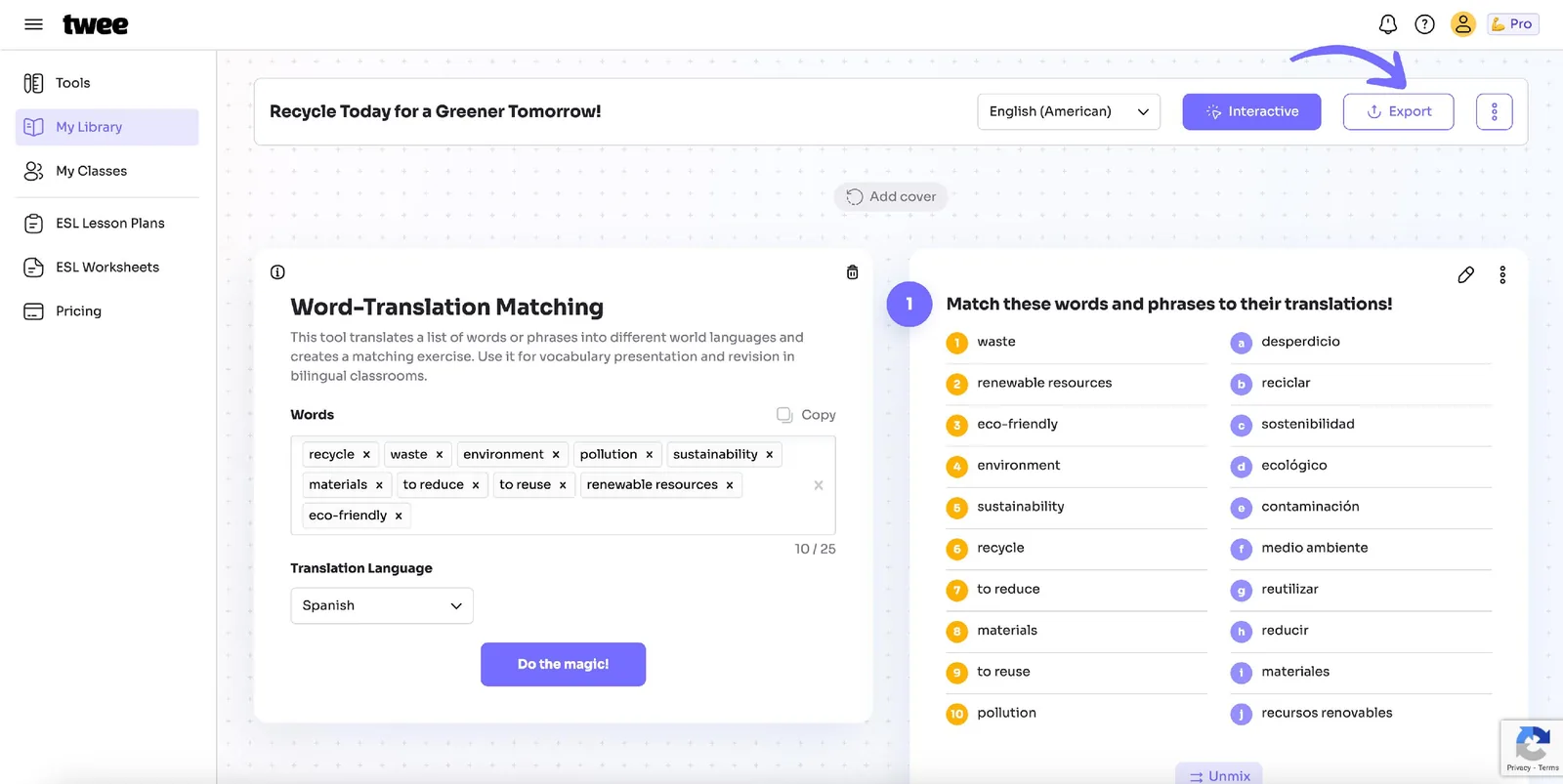
Step 2: Click the Export button
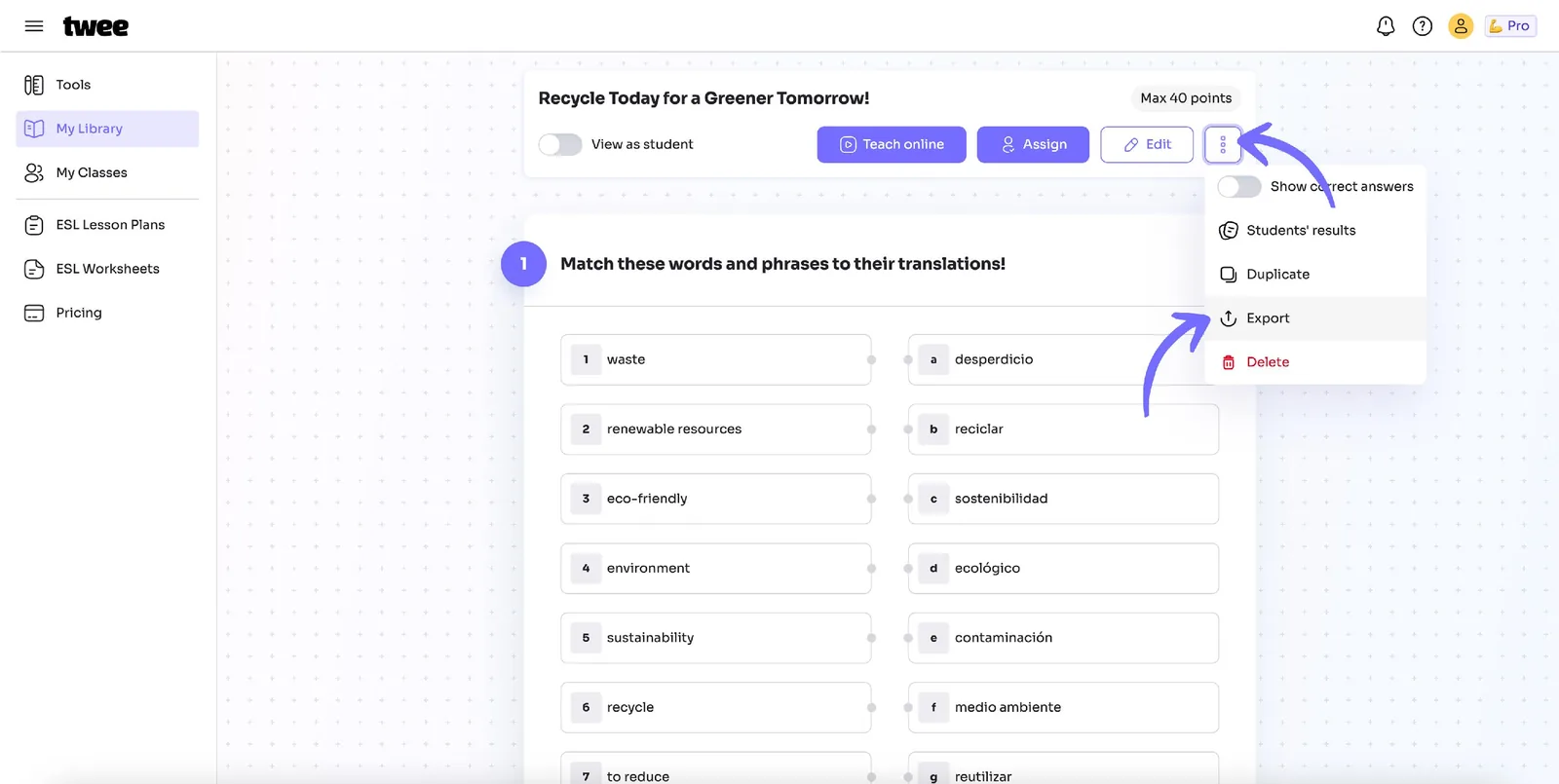
Click on the Export button.
- If you're in edit mode, you’ll see it above the assignment.
- If you're in interactive mode, click on the three dots to open the menu, where Export will be one of the options.
Step 3: Choose Google Docs or Forms
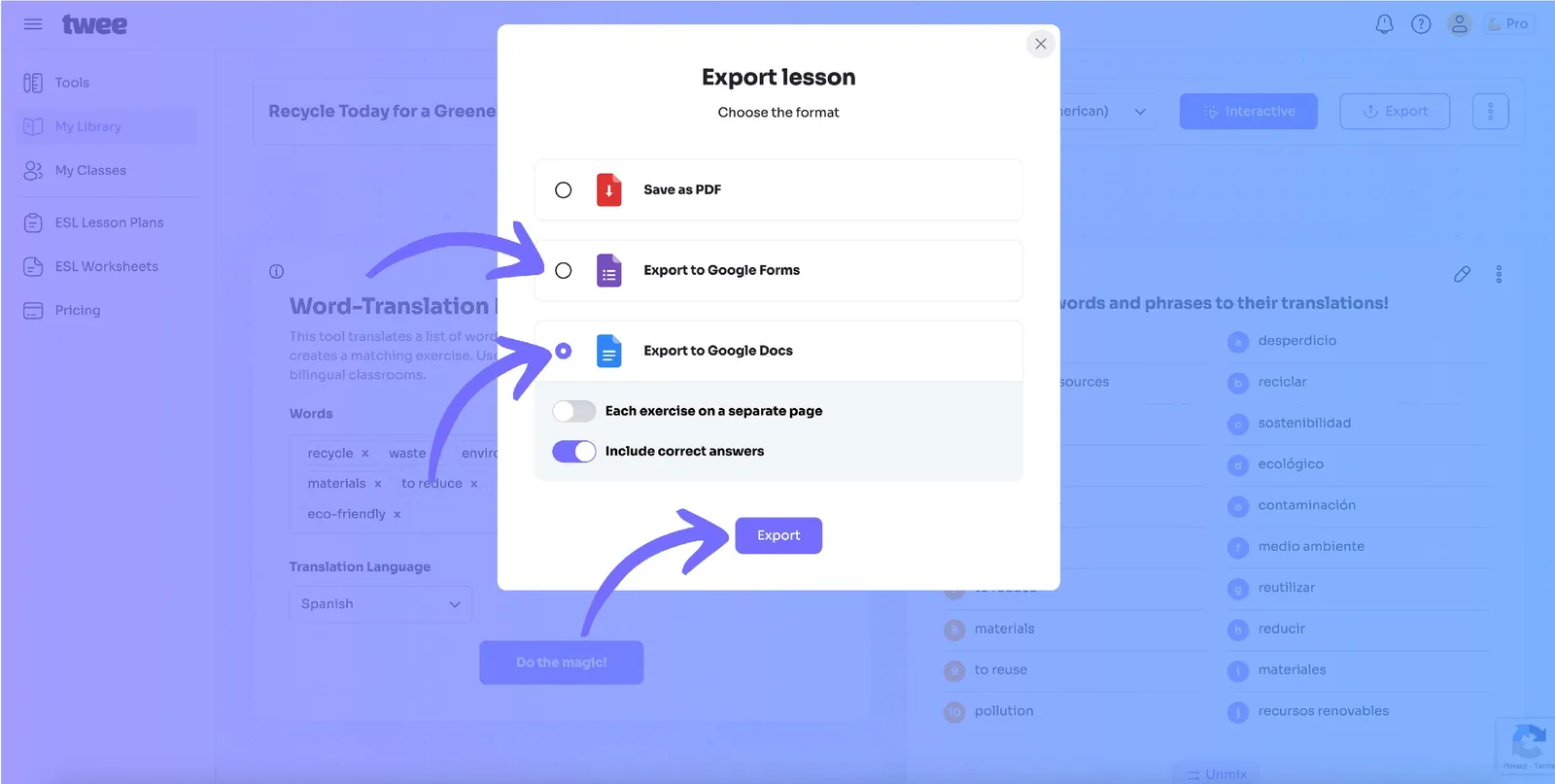
A popup titled Export lesson will appear.
Select either:
- Export to Google Docs – for a printable format.
- Export to Google Forms – for interactive quizzes or assignments.
(Optional toggles: choose to show correct answers or put each exercise on a separate page.)
Step 4: Connect your Google account
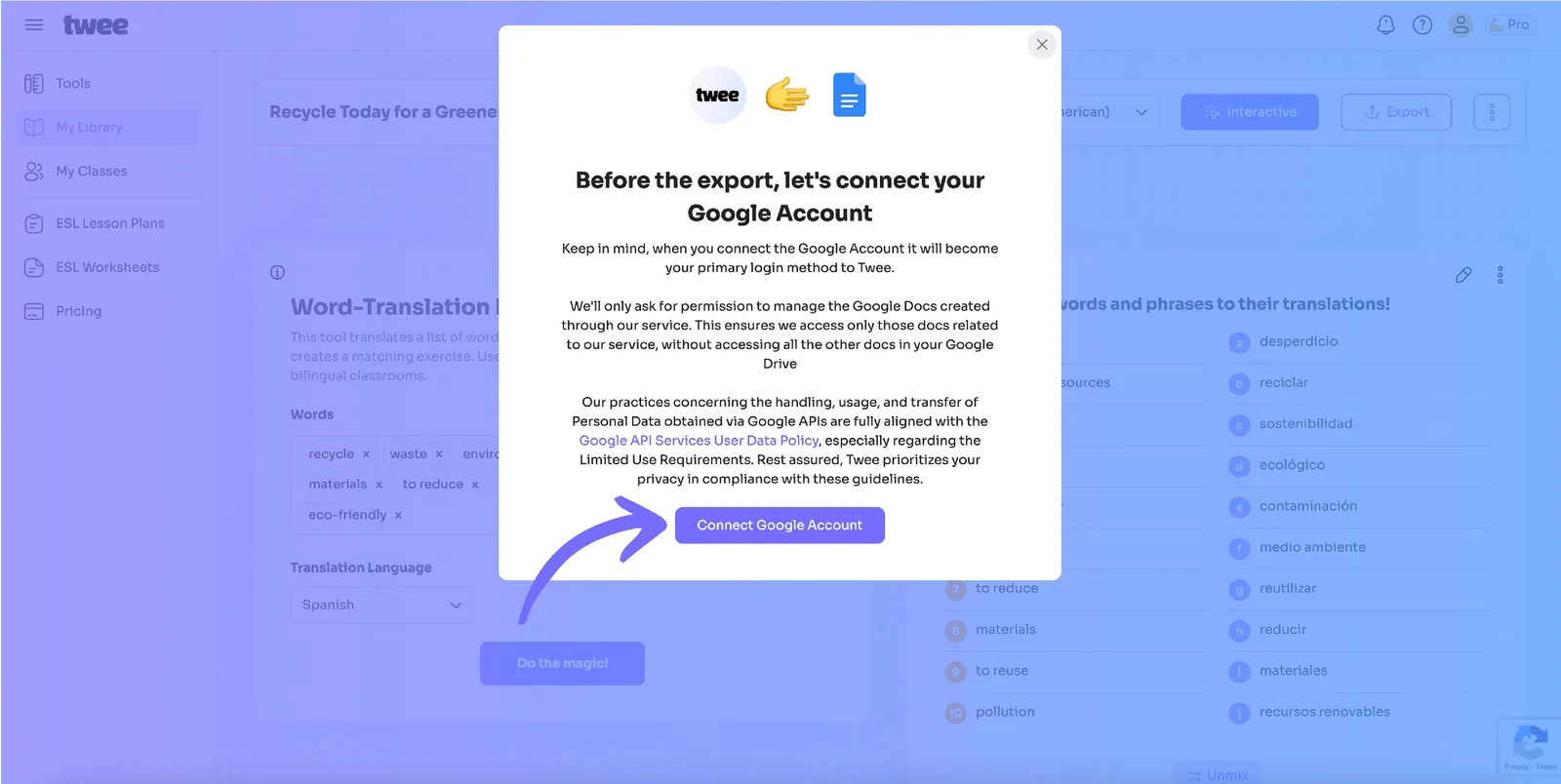
If this is your first time exporting, you’ll see a message:
“Before the export, let's connect your Google Account.”
Click Connect Google Account.
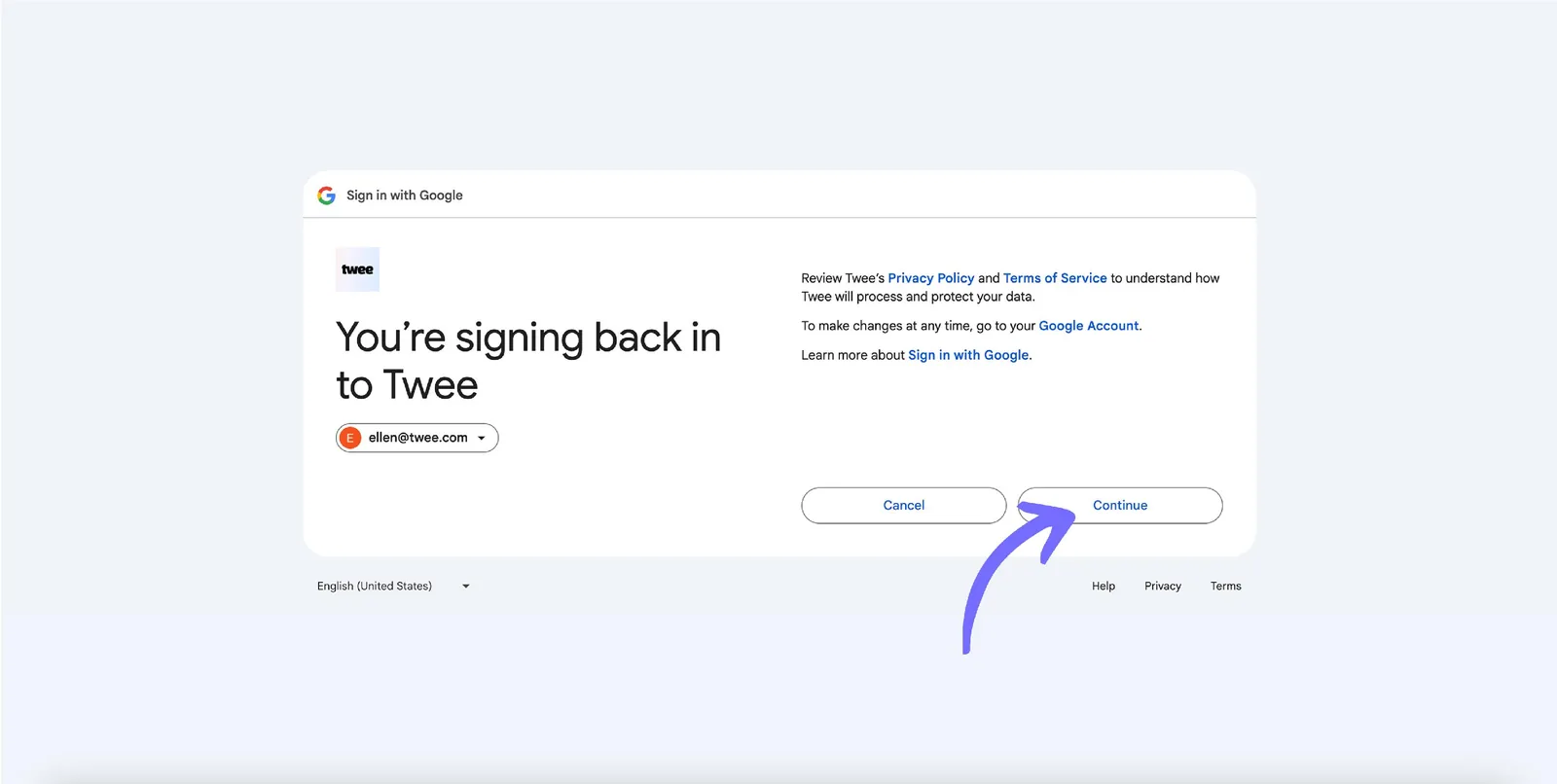
Step 5: Sign in and allow access
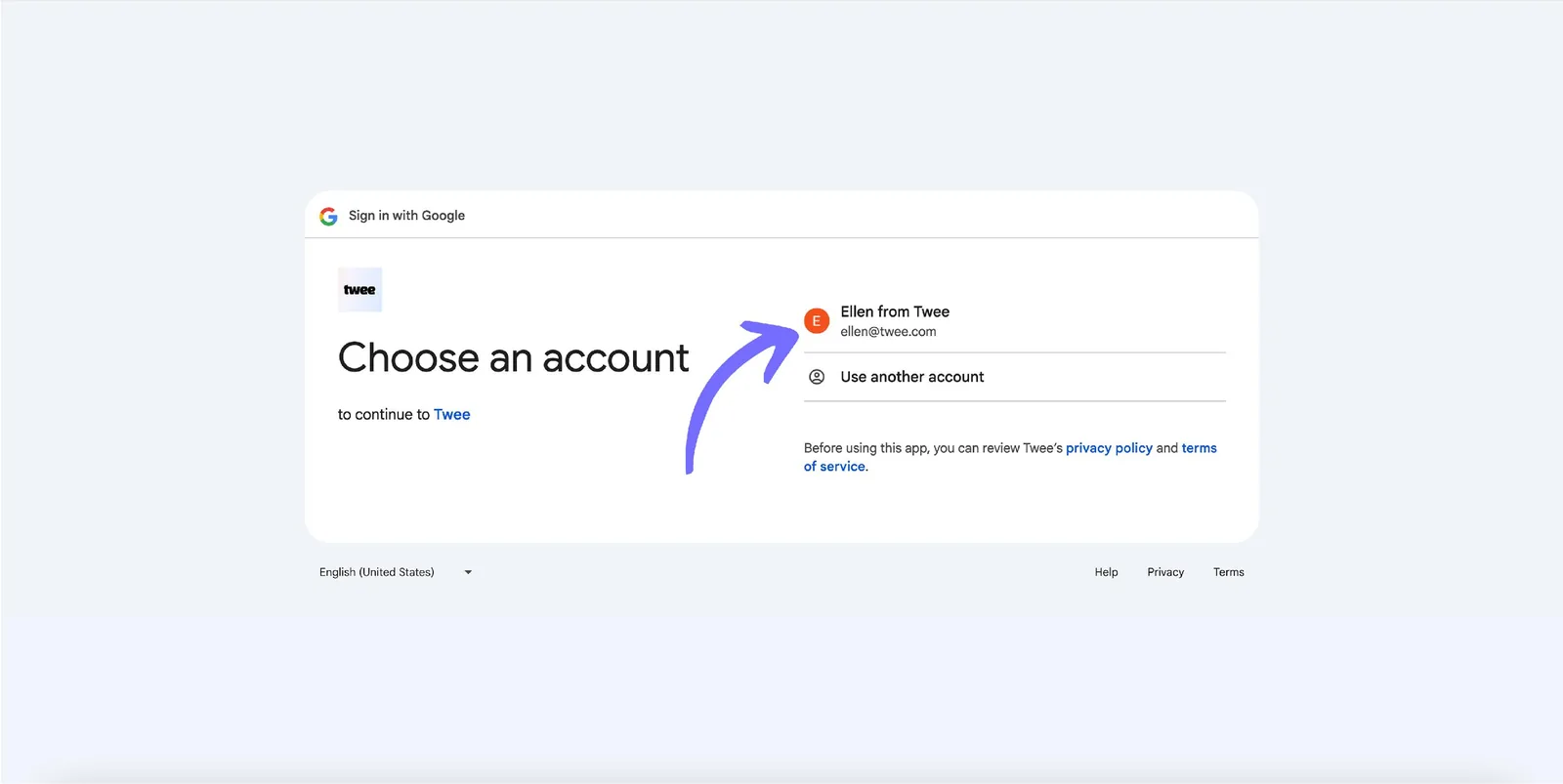
Select your Google account or log in with a different one.
Click Continue when asked to confirm your identity and allow access.
Step 6: Proceed with the export
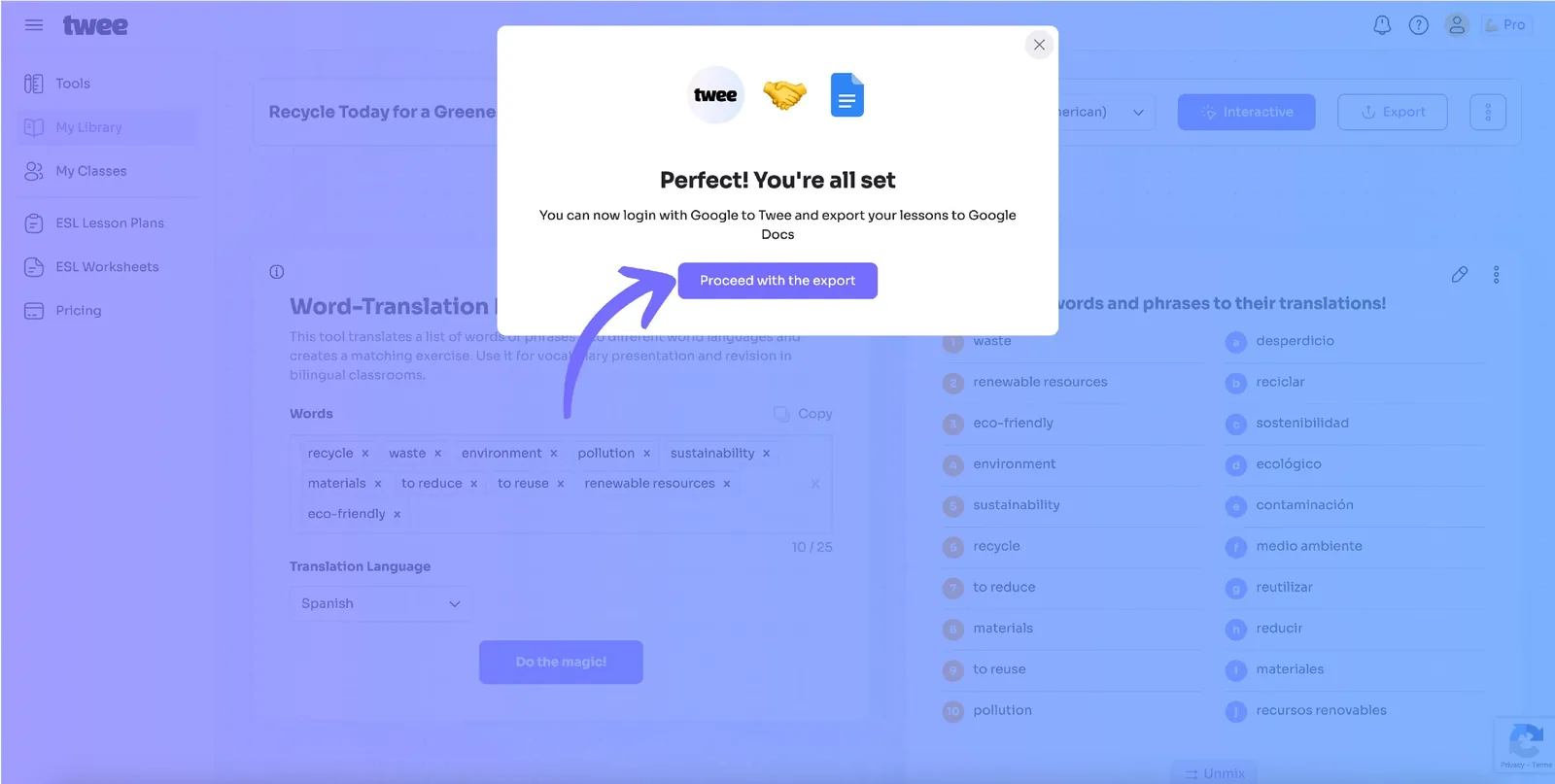
Once your Google account is connected, click Proceed with the export.
Step 7: Open the exported file
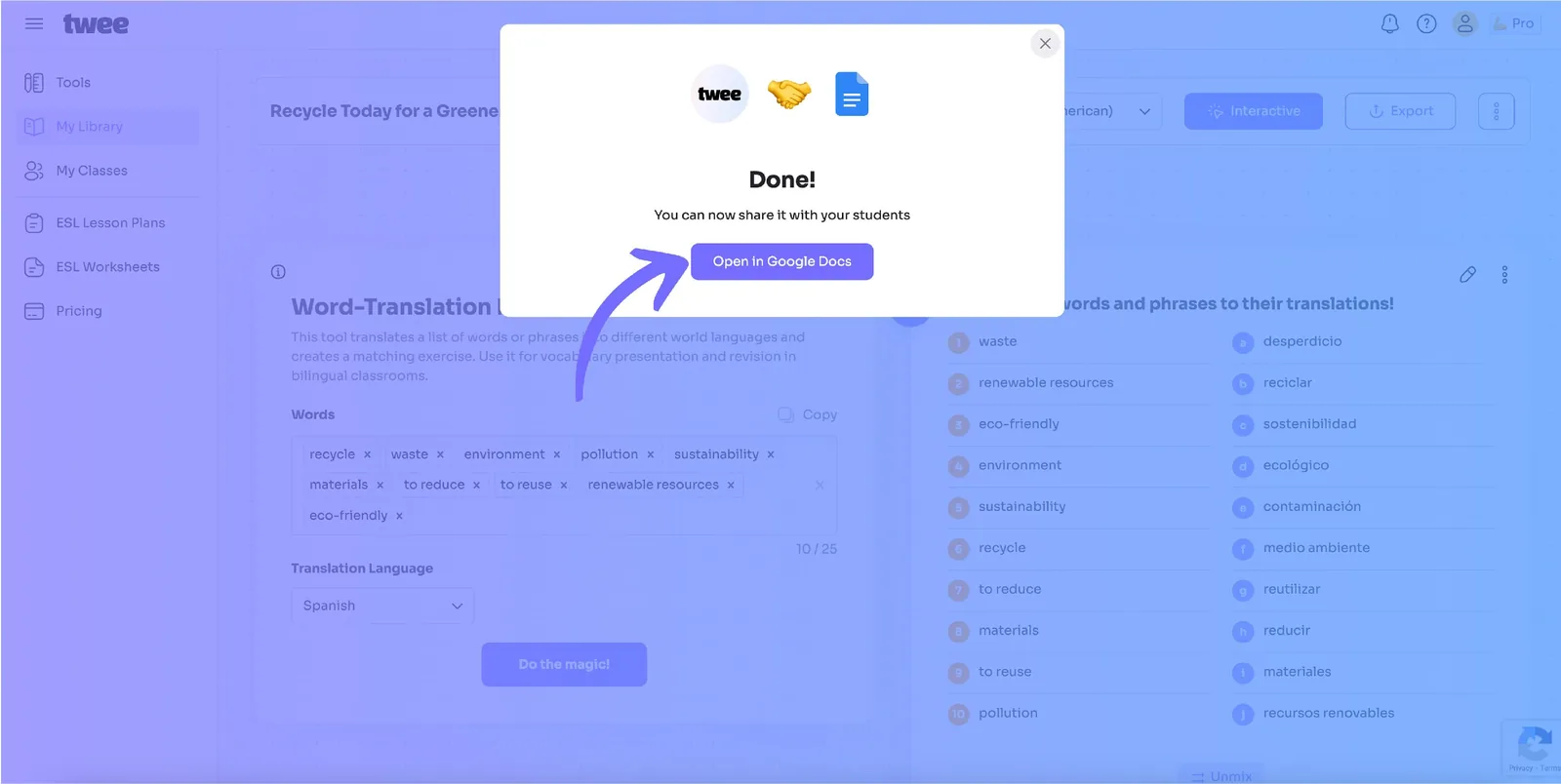
A confirmation will appear:
“Done! You can now share it with your students.”
Click Open in Google Docs or Google Forms, depending on your choice).
You’ll see your full lesson neatly exported:
- In Google Docs – with all sections clearly formatted and correct answers included (if selected).
- In Google Forms – as a digital quiz your students can complete online.