
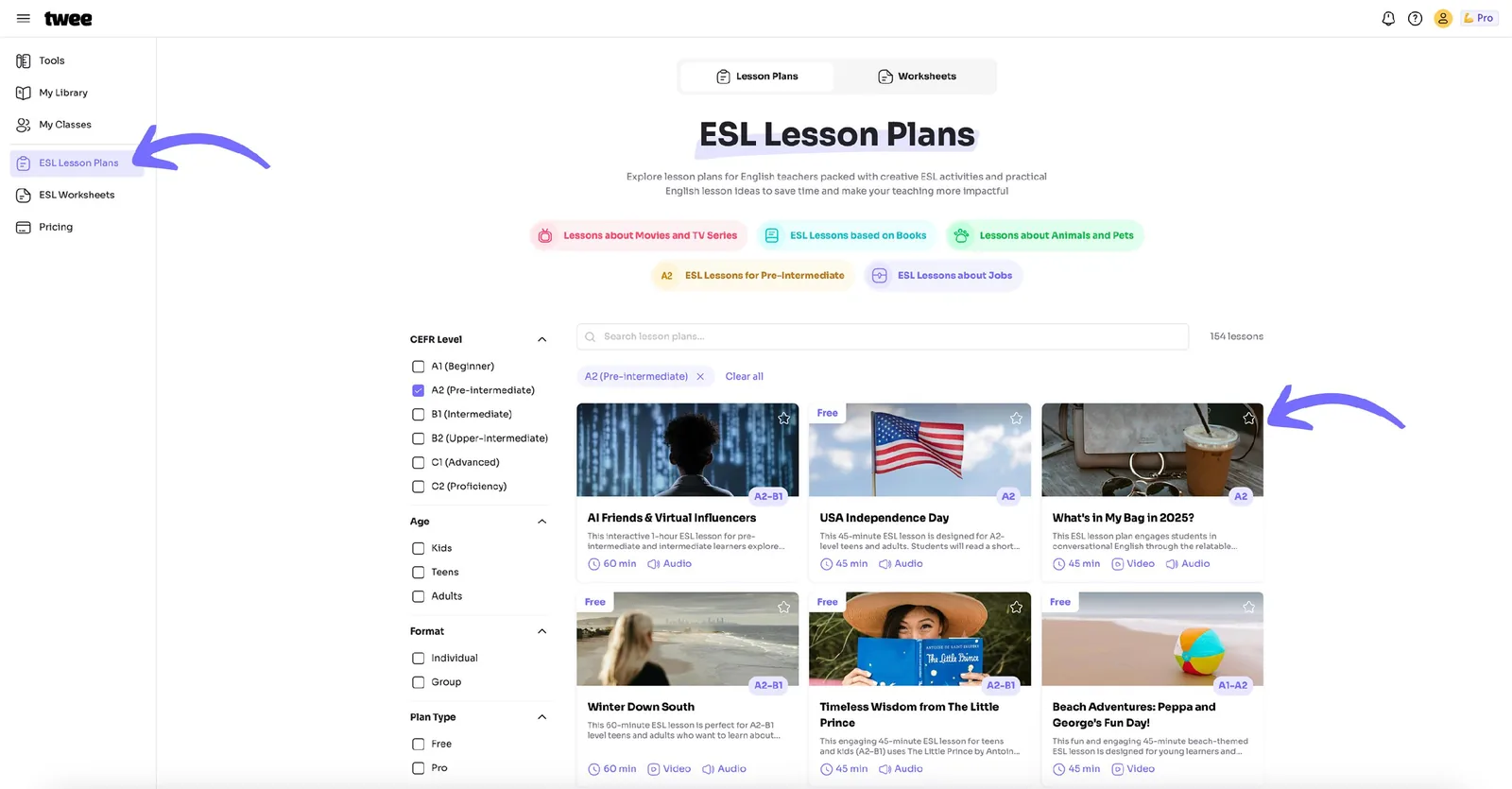
Step 1: Copy it to your library
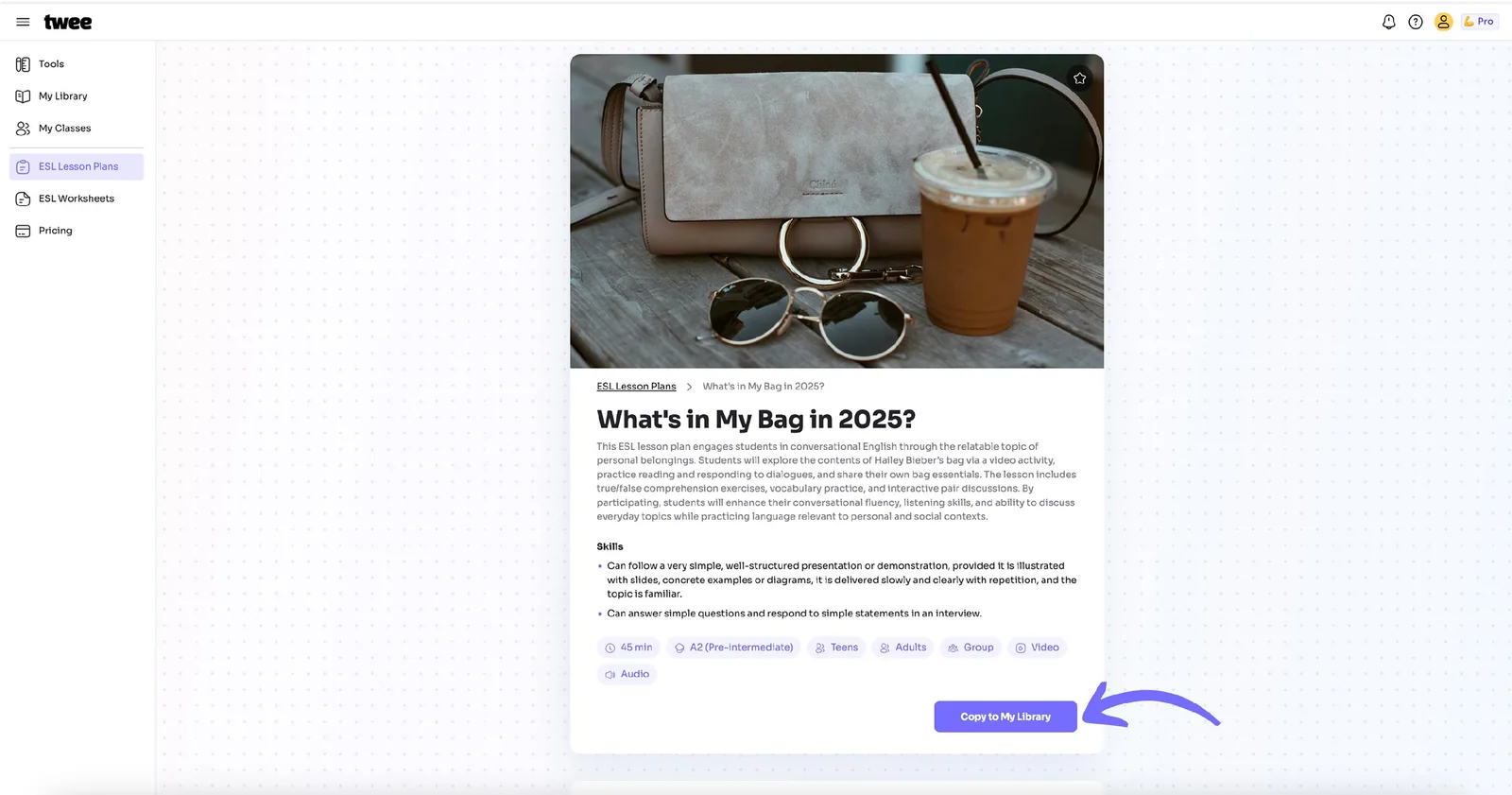
Open the lesson or worksheet and click the Copy to my Library button.
Step 2: Rename and save the copy
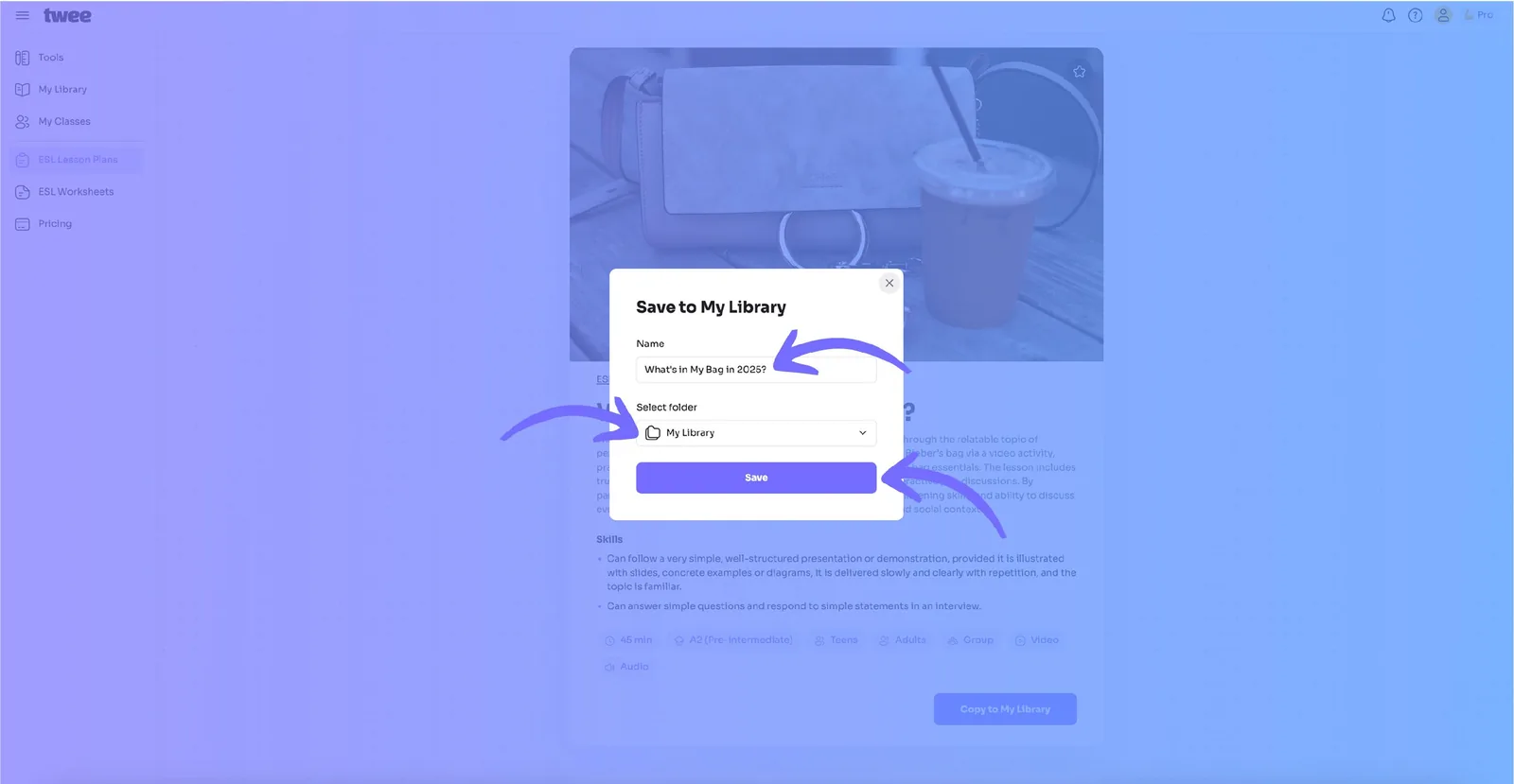
You’ll be prompted to:
- Rename the lesson or worksheet.
- Choose the folder where you'd like to save it.
Click Save.
Step 3: Open your copy
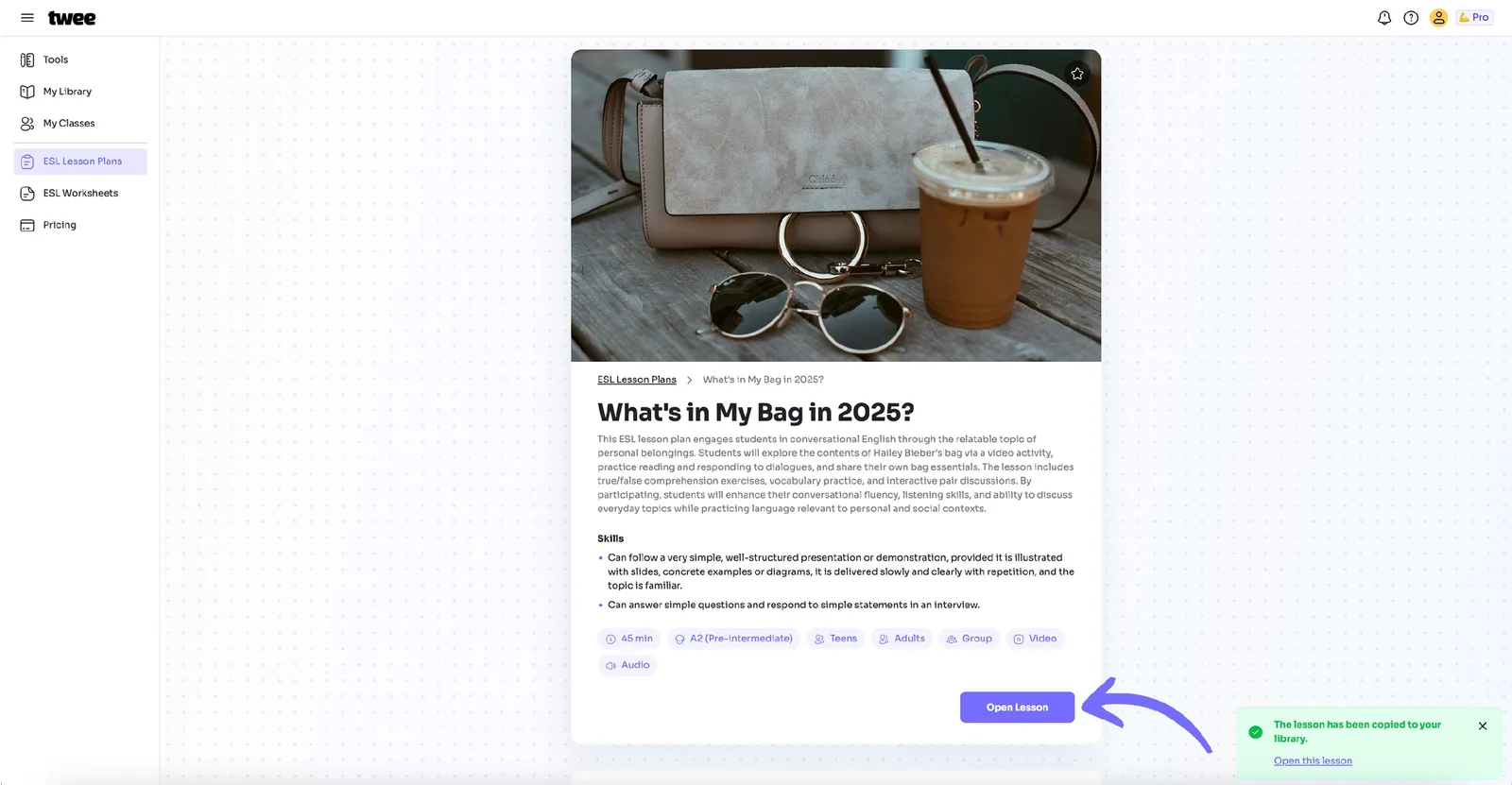
Open the copy by clicking the green pop-up link in the bottom left corner or by clicking on Open Lesson.
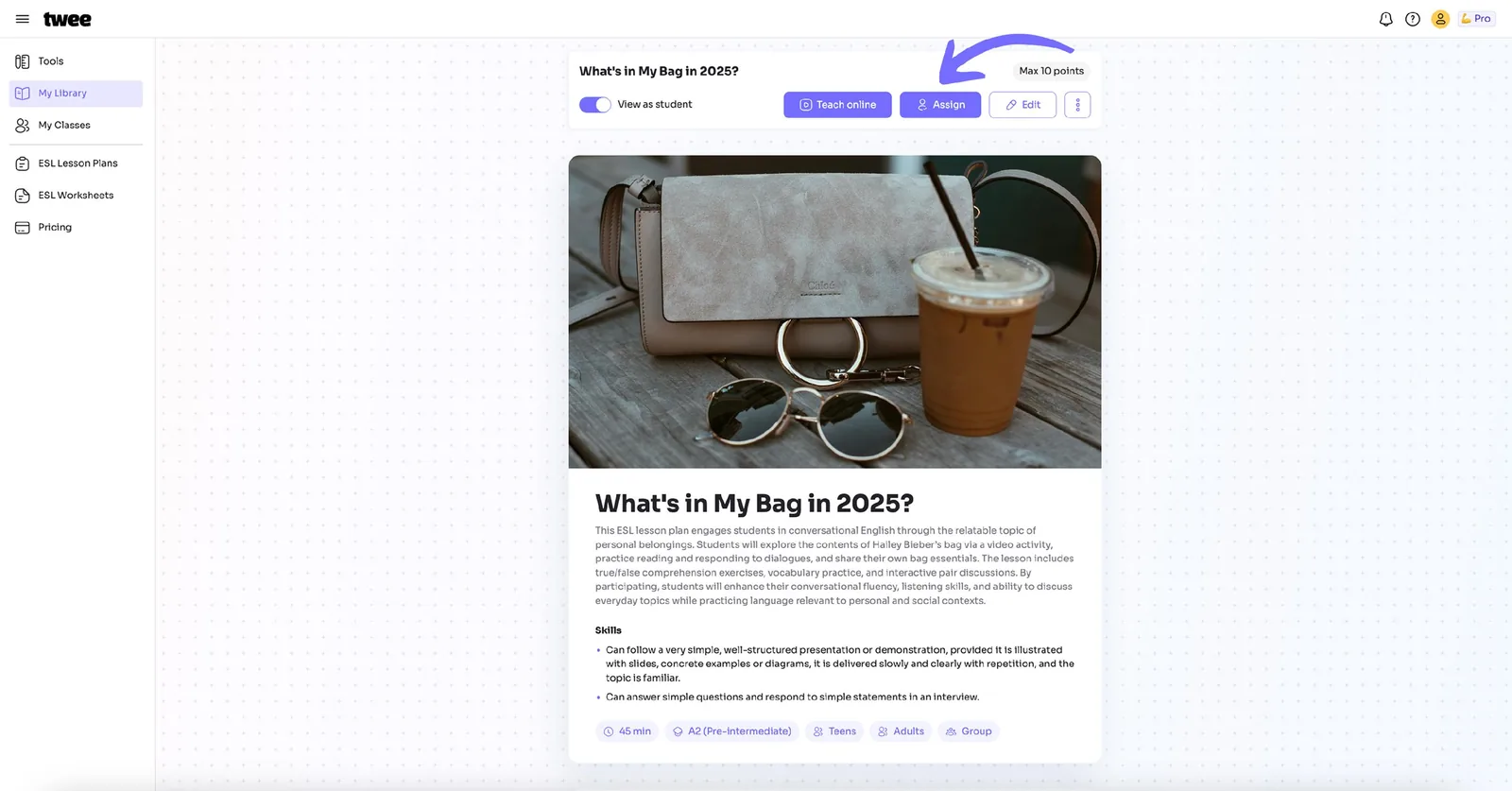
Step 4: Click Assign
You’ll see the Assign button at the top. Click on it to view the assignment options.
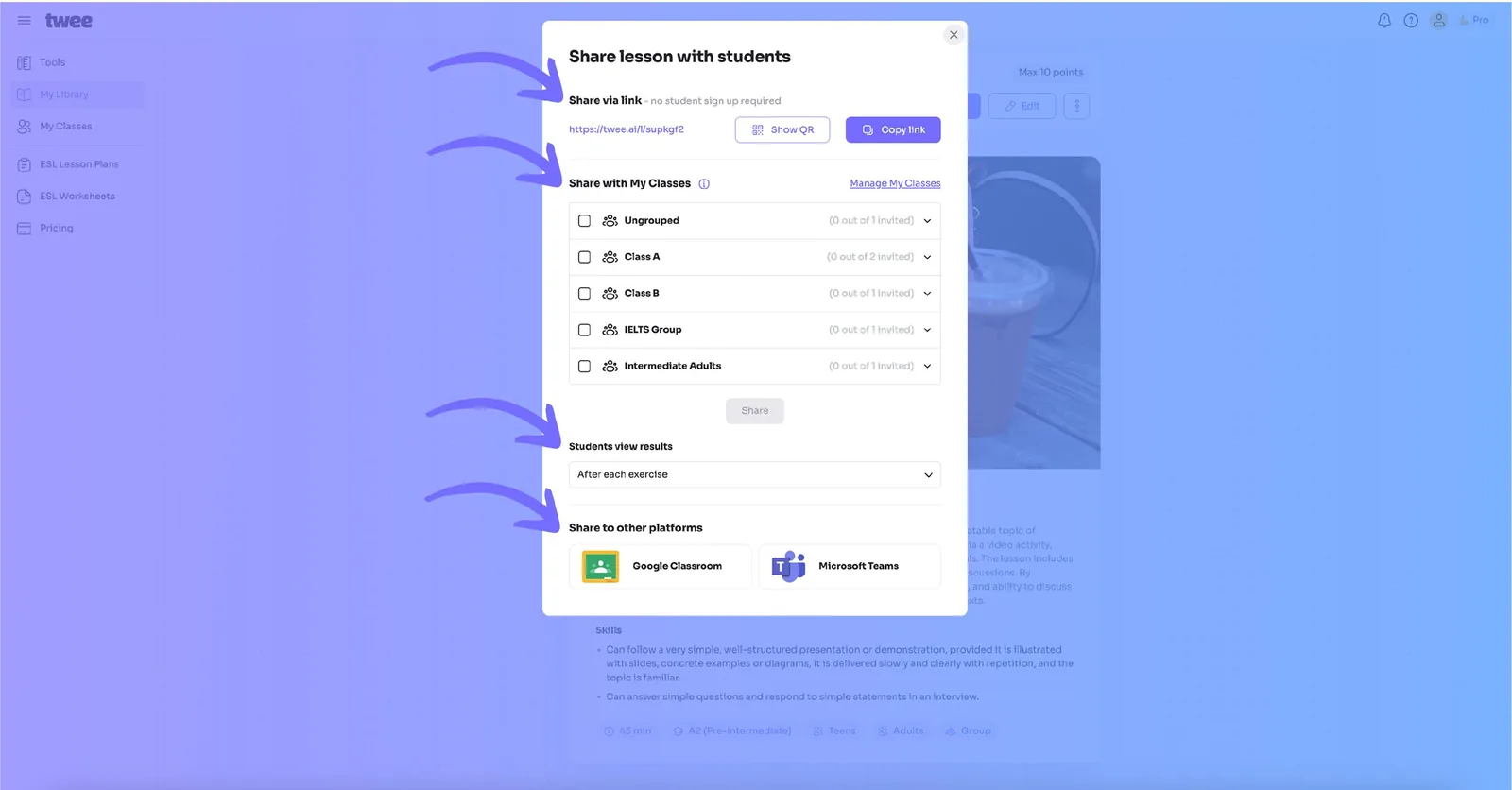
Step 5: Pick a sharing option
Choose how you want to assign the lesson/worksheet:
- Copy the link or QR code to send to your students (no account needed).
- Select students from your classes who already have Twee accounts and click Share.
- Share via other platforms like Google Classroom or Microsoft Teams.
That’s it — you’re all set!