
Step 1: Start the import in My Classes
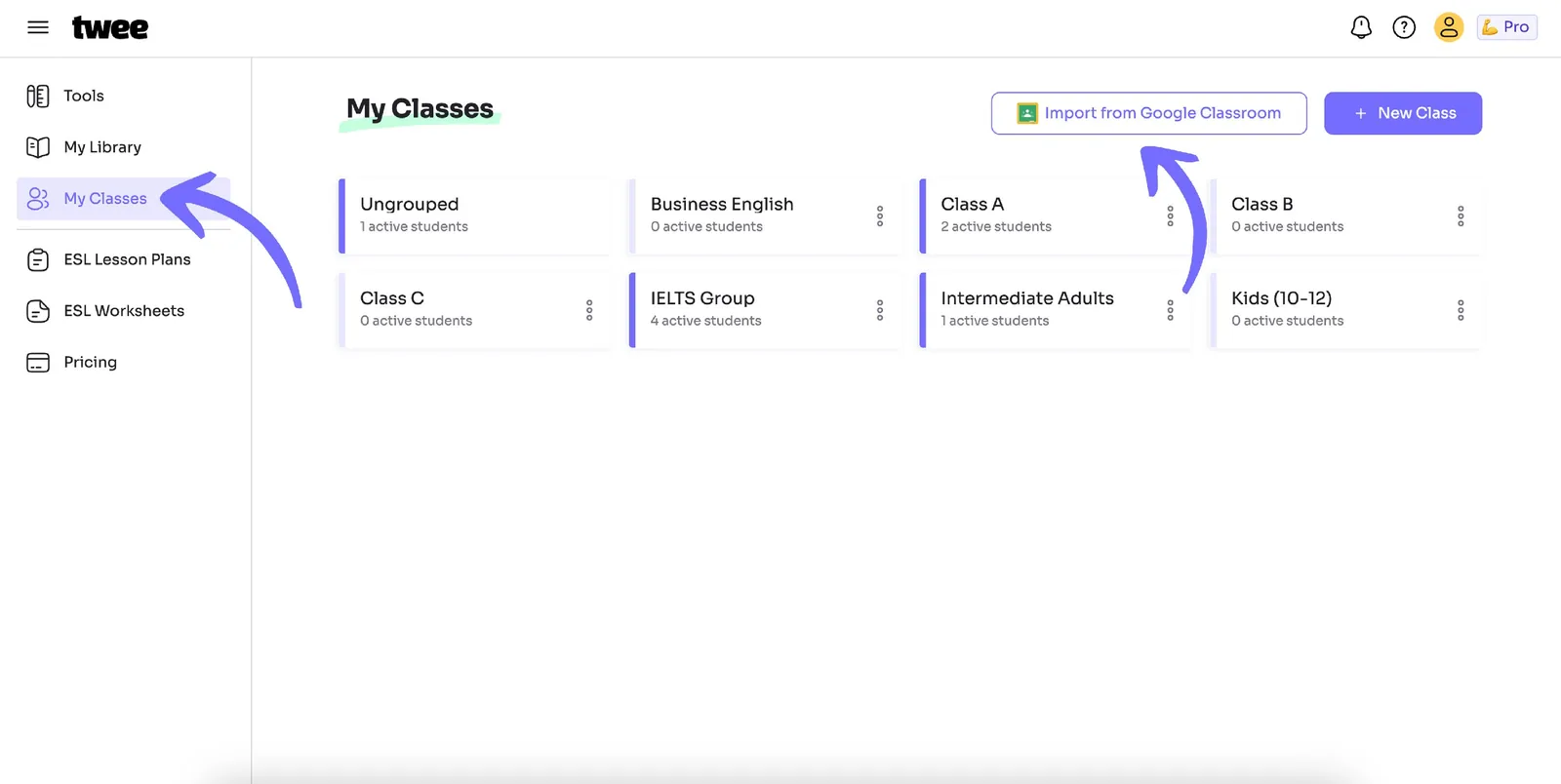
Go to My Classes in the left sidebar and click the Import from Google Classroom button in the top-right corner.
Step 2: Connect your Google account
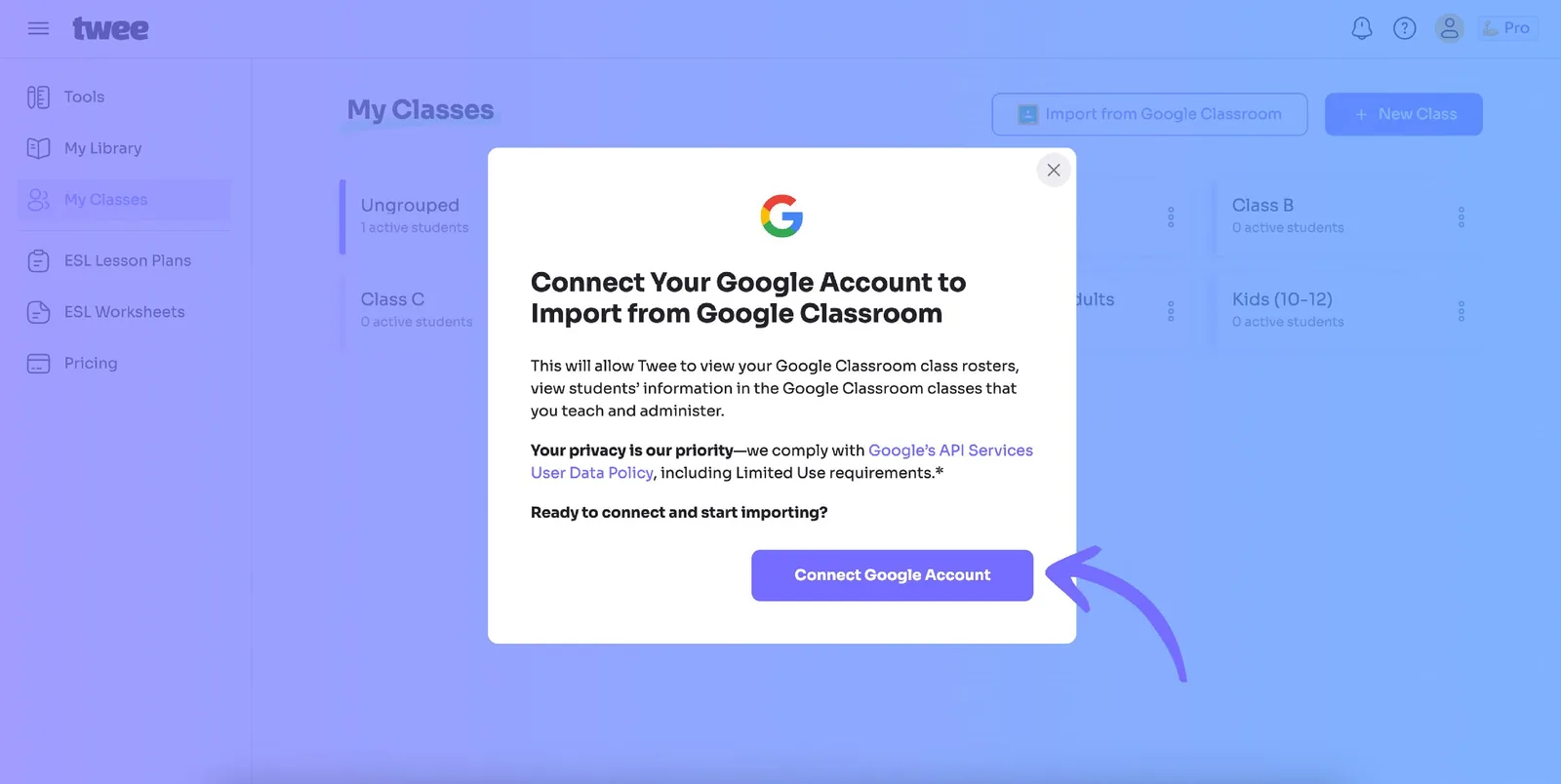
A popup will appear asking you to connect your Google account, if it isn't already.
Click Connect Google Account.
Step 3: Choose the right account
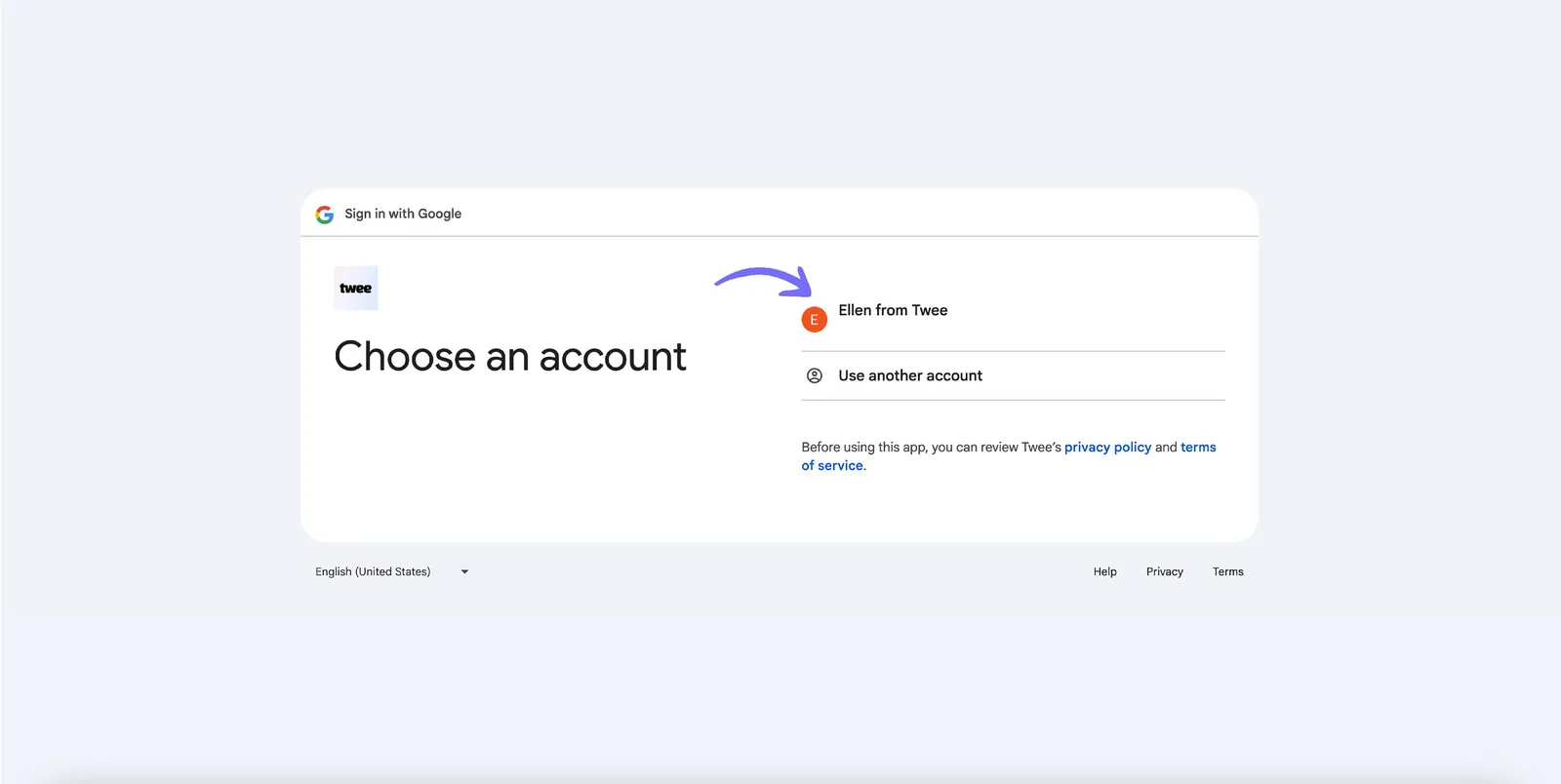
Choose the Google account associated with your Google Classroom.
(You may need to re-enter your password or verify your identity.)
Step 4: Grant the permissions
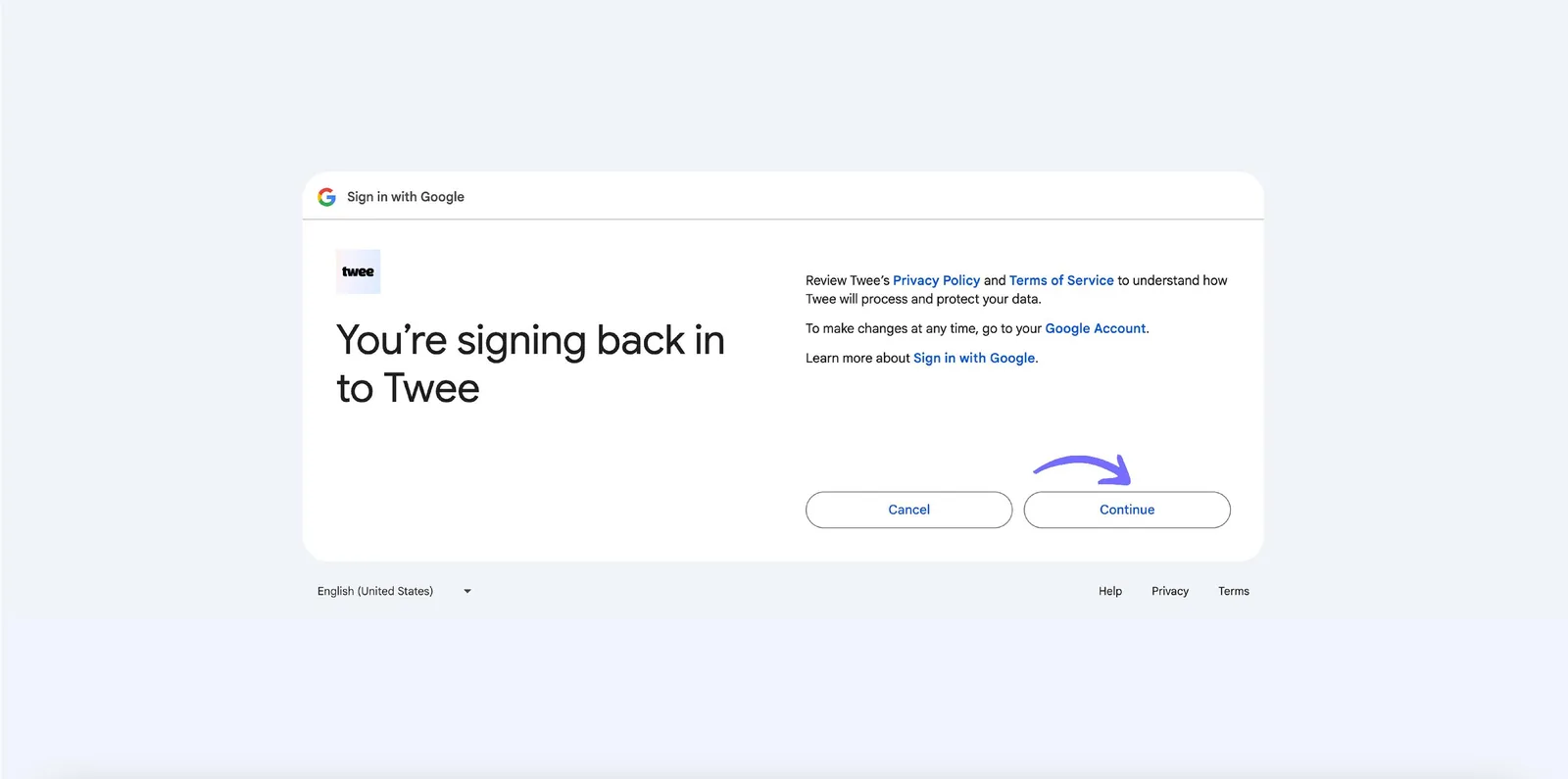
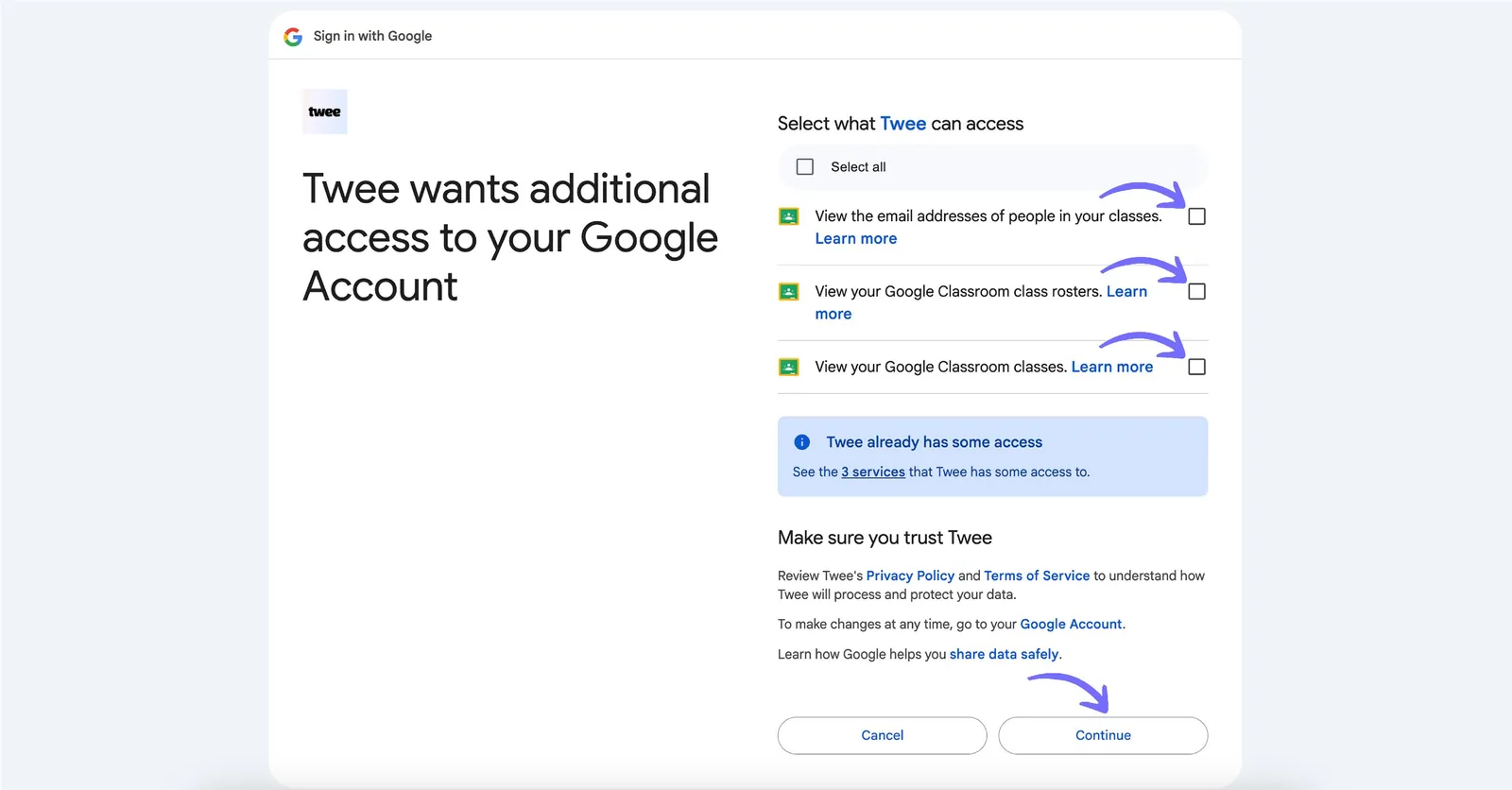
You’ll be asked to grant permissions.
✅ Tick the checkboxes to allow Twee to:
- View email addresses of students
- Access your Google Classroom rosters
- Access your classes
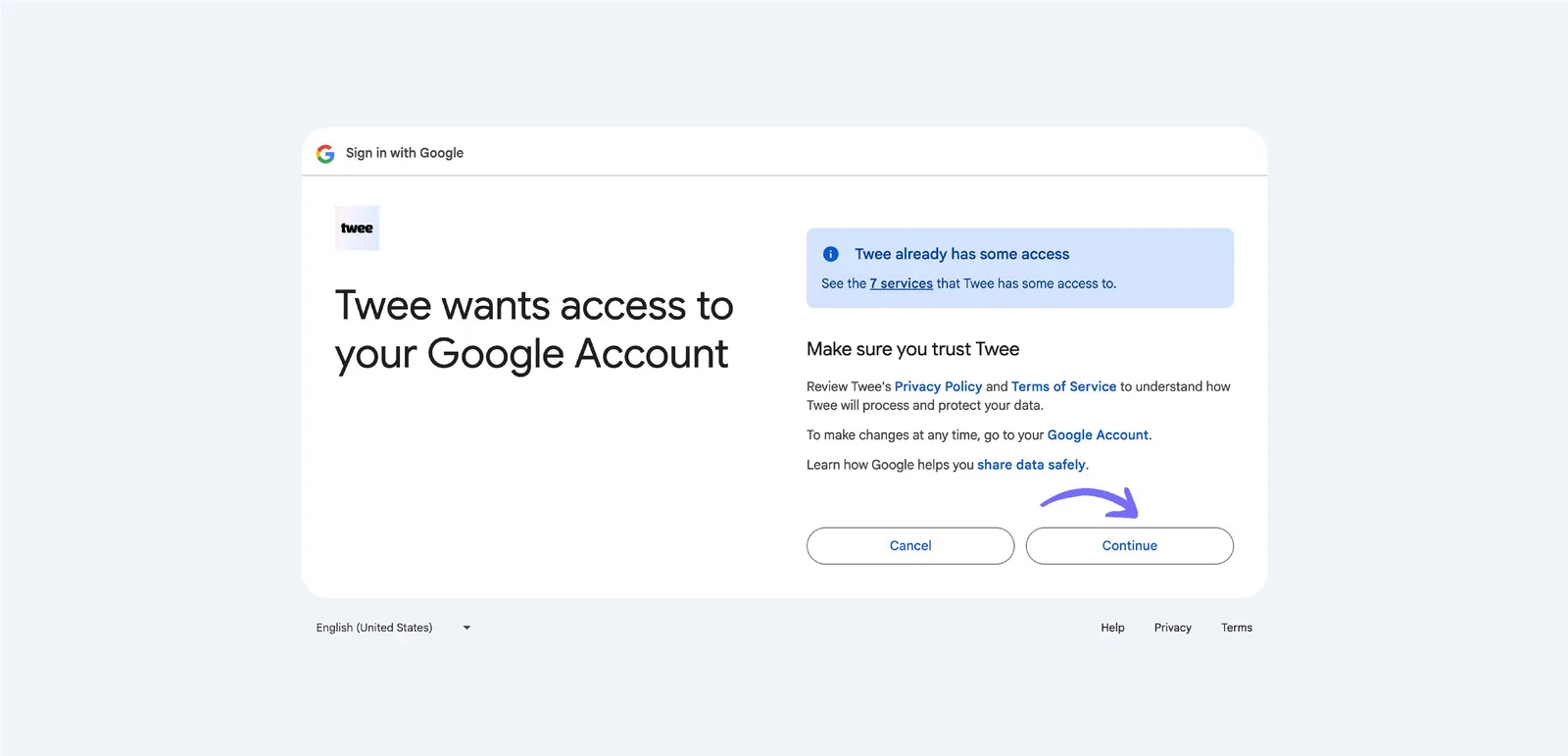
Then click “Continue” to authorize access.
Step 5: Select the classes to import
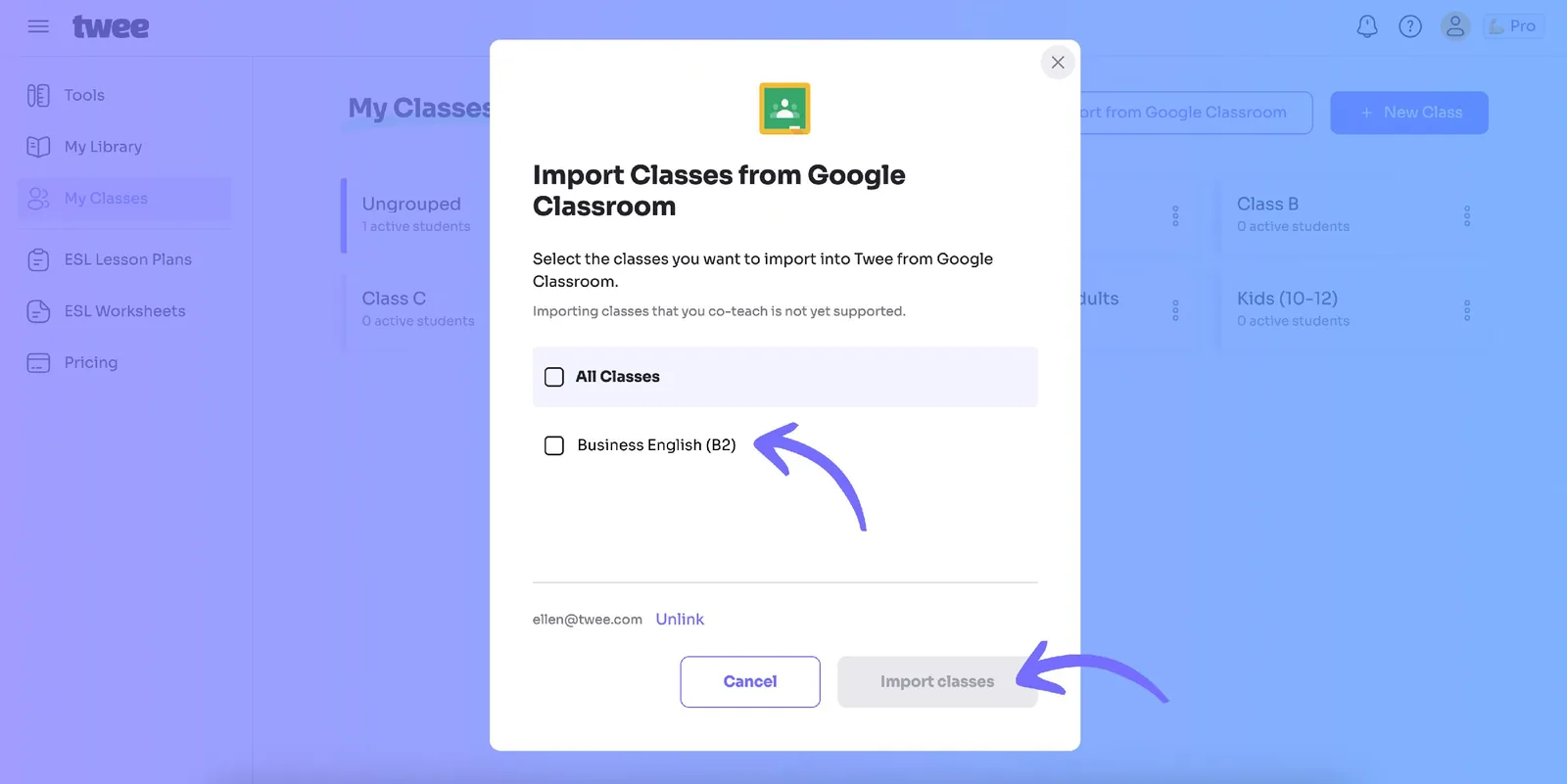
Once connected, you’ll see a list of your Google Classroom classes.
Tick the class(es) you want to import (e.g., Business English B2) and click Import classes.
Step 6: See your imported classes
Your selected Google Classroom classes will now appear in My Classes.
All active students from that Google Classroom will be automatically added to the corresponding class on Twee.